Docs catalog
The Docs page (under Plan in the sidebar) holds Markdown notes that sit next to the tracking plan. People and AI agents both read them. Typical notes are warehouse gotchas, event query recipes, naming conventions, or an agent skill that teaches an assistant how to query your events.
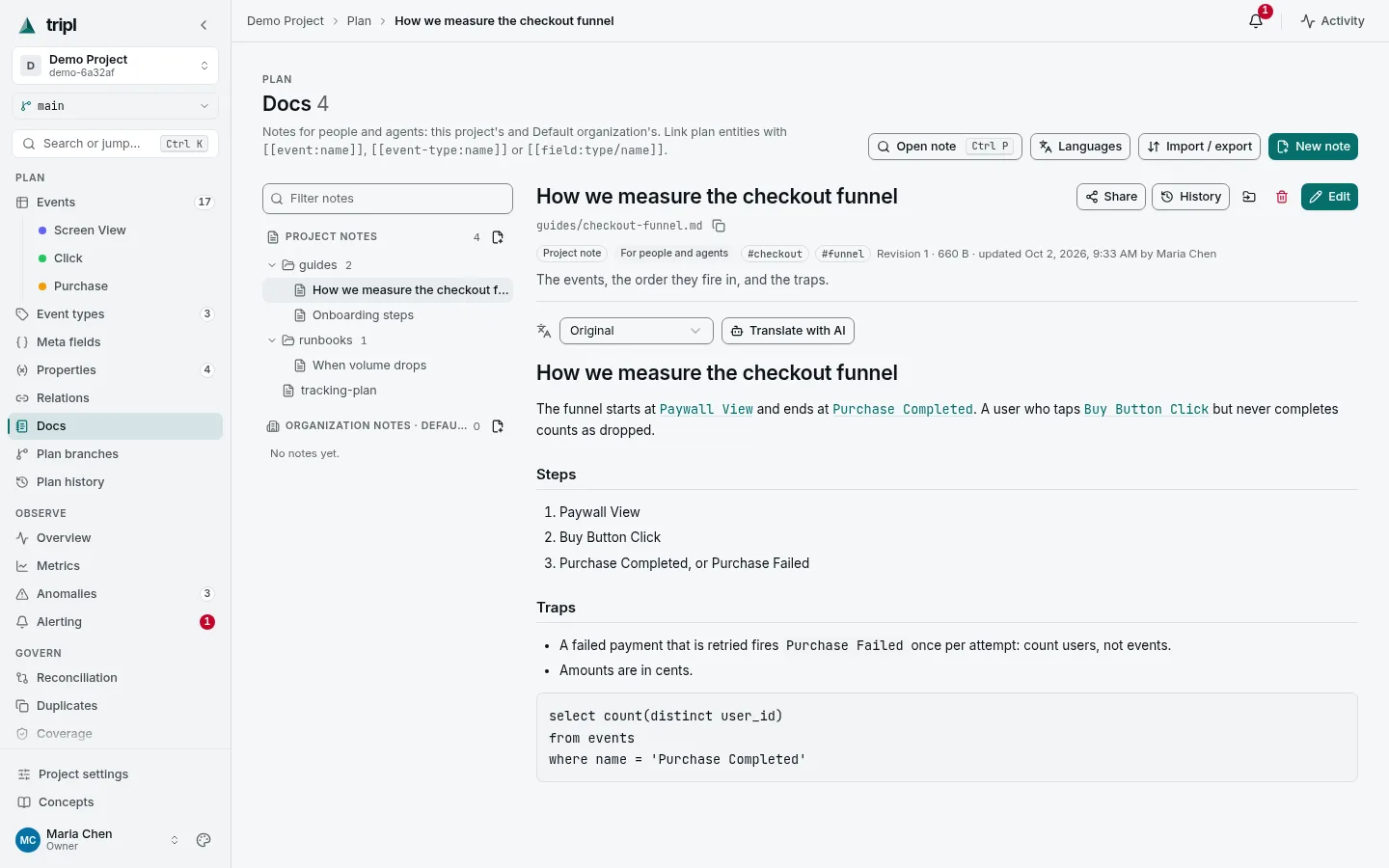
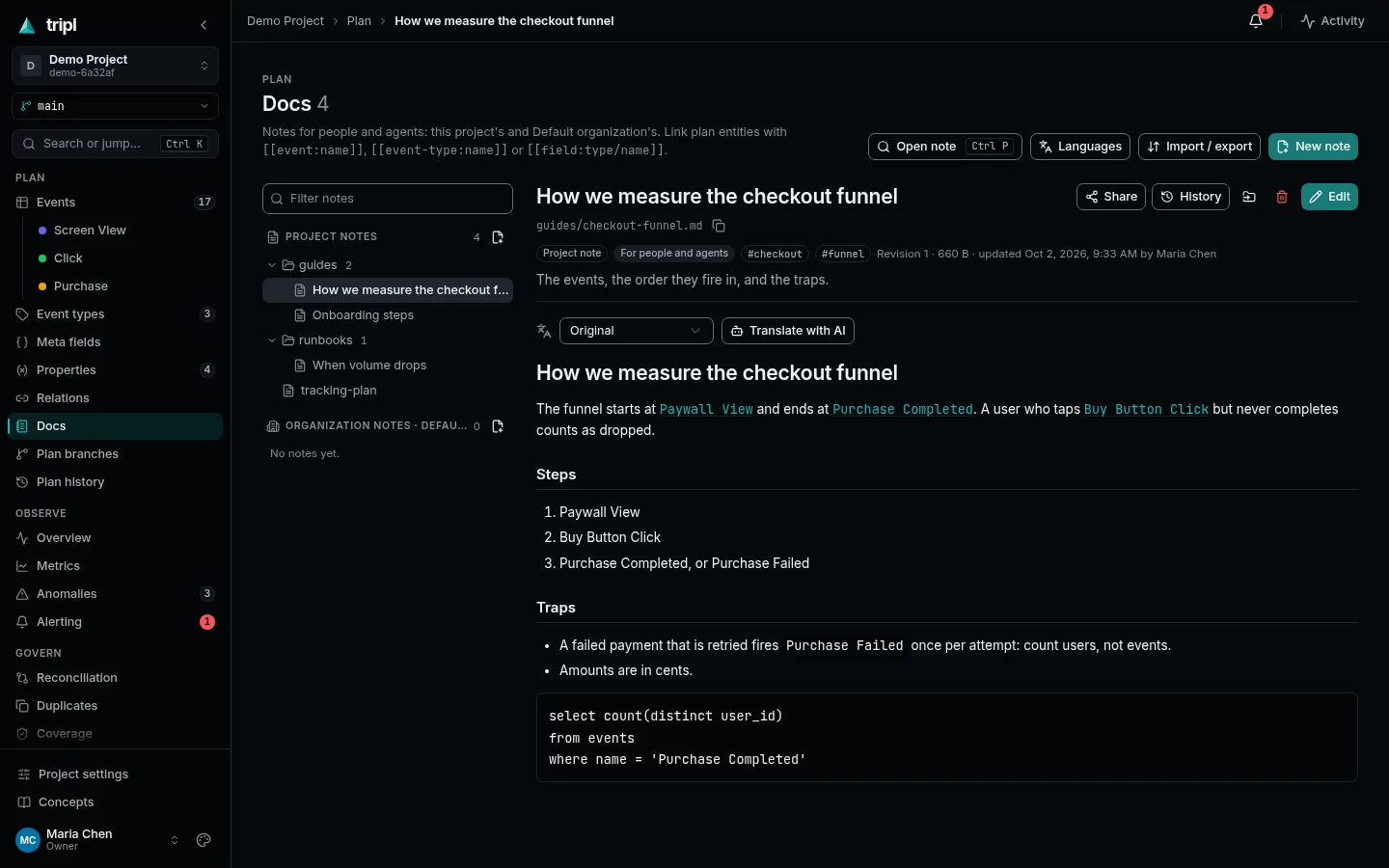
New to it? Keep team notes next to the plan is the short version, step by step.
Two levels: project and organization
Every project shows two roots:
- Project notes belong to this project only.
- Organization notes belong to the project's organization. Every project of that organization shows the same organization notes, under their own root.
The same path can exist once in each root. Links, search and back-links cover both roots.
Files and folders
A note is a Markdown file with a path such as guides/warehouse-gotchas.md.
Folders come from the paths, so there are no empty folders. To create a folder,
create a note inside it. Renaming or moving a folder moves every note under it,
and deleting a folder deletes every note under it.
To move a note or a folder, drag it in the tree onto another folder, or onto Project notes or Organization notes to move it to the top level. A collapsed folder opens when you hold the dragged item over it for a moment. Notes stay in their root: dropping a project note on the organization root, a folder into itself or one of its subfolders, or an item on the folder it is already in does nothing. Dragging is off while a note is open in the editor. The Undo button in the confirmation moves the item back. A folder move is undone only while that folder holds exactly the notes the drag moved: when it already had notes of its own, or a note was added since, move them back with Rename or move. That dialog is also the way to move without a mouse.
Path rules:
- The path is relative and ends in
.md.SKILL.md,README.mdandreferences/*.mdare all allowed. - Each folder or file name starts with a letter or digit and uses only
letters, digits, spaces and
. _ ( ) + -, with at most 128 characters. - There is no
.or.., no leading/, no\and no control characters.a//b.mdbecomesa/b.md, and a leading./is removed. - A path has at most 10 levels and 512 characters.
- Paths are case-insensitive within a root.
Guide.mdandguide.mdcannot both exist, so an export always unpacks on macOS and Windows.
Frontmatter
A note may start with a YAML block. tripl reads these keys:
---
title: Warehouse gotchas
description: Why the events table double counts some sessions
tags: [warehouse, sql]
audience: agent
---
| Key | Meaning |
|---|---|
title | The note's title. If it is missing, tripl uses name (which agent-skill files use), then the first # Heading, then the file name. At most 300 characters. |
description | A short summary shown in the tree and in search. At most 2000 characters. |
tags | A list, or a comma-separated string. At most 30 tags, each at most 64 characters, using letters, digits and _ . : -. |
audience | human, agent or both (the default). It is a label for filtering. It does not hide the note from anyone. |
tripl stores every other key unchanged and does not check it, so
allowed-tools, metadata and other agent-skill keys survive an import and
export. Frontmatter that is not valid YAML, or that is not a mapping, is
refused with a message that names the problem.
Links and mentions
A note links to other notes, to plan entities and to people with
[[kind:target]]. Add |label to show your own text instead:
[[metric:signup_rate|the signup rate]].
| Syntax | Links to | Written by |
|---|---|---|
[[doc:<id>]] | another note, shown with its current title | id |
[[doc:<id>#heading-slug]] | a heading in another note | id |
[[event:purchase]] | the event named purchase | name |
[[event-type:checkout]] | the event type named checkout | name |
[[field:amount]] | a field named amount on any event type | name |
[[field:checkout/amount]] | the field amount of event type checkout | name |
[[variable:country]] | the property named country | name |
[[metric:signup_rate]] | the catalog metric named signup_rate | name |
[[alert-rule:<id>]] | an alert rule, shown with its current name | id |
[[branch:feature_x]] | the plan branch named feature_x | name |
[[scan:nightly]] | the scan config named nightly | name |
[[data-source:warehouse]] | a data source the project uses | name |
[[user:<id>]] | a person, shown as @Name (a mention) | id |
You do not type ids. In the editor:
- Type
[[to open the link picker. It searches notes you can read, plan entities, alert rules, branches, scans, data sources and people as you type. - Type a kind and a colon, such as
[[metric:, to search only that kind. - Type
@after a space or at the start of a line to mention a person. - Use the arrow keys to choose, Enter or Tab to insert, and Esc to close the picker. The picker inserts the full link, id included.
You can also type [[doc:guides/setup.md]] by hand. When you save, tripl
changes it to the [[doc:<id>]] form if that path is a note you can read.
Otherwise the link stays as you typed it and is broken. If a reader can read
a note at that path, the warning names that note and asks them to save the note
to link it by id.
Renames and moves
Links by id (notes, alert rules and people) keep working when the target is renamed or moved, and always show the current title or name.
Links by name (plan entities, branches, scans and data sources) resolve against the main plan every time a note is shown, so a link never points at an old copy. When the target is renamed, the link is broken. The note shows a warning that lists the broken links, with up to three current names that are close to the one written (for the first 20 broken links of a note). In the editor, click a name to relink every copy of the link. A save reports broken links, but the note is still saved. When more than one event has the name, the link is ambiguous and opens the first one.
Links inside code blocks and inline code are plain text.
Notes you cannot see
A link to a note you cannot read shows as Unavailable note. It does not show the note's title or path, and it looks the same as a link to a deleted note.
Mentions
When you save a note with a new [[user:<id>]] mention, tripl sends that person
a notification, but only if they are a member of the organization and of this
project, and can read the note. A mention that was already in the note does not notify again. Imports
never send notifications.
Back-links
A note's page lists Linked from: the other notes that link to it, limited to notes you can read.
On the main plan, entity pages show a Notes card that lists every note that links to the entity, from both roots. The card is on the event, event type, property and metric pages. An event type's Field notes section lists the notes that link to its fields. The API returns back-links for every kind (see the Agent API guide).
History
Every save keeps a revision with its author, time and full content. The History drawer lists the revisions, shows the diff of each one against the revision before it, and can Restore one. A restore is a new revision, so it can be undone too. It brings back the content, not the old path.
Deleting a note also deletes its history. The audit log keeps a record of the delete: the path, the last revision number and a hash of the content of every note removed, including each note a folder delete or a mirror import removed. A deleted note also leaves search at once, on every plan branch.
Saving checks the revision you started from. If someone else saved in the meantime, you get a conflict and can reload their version or overwrite it.
Who can read and write
- Every project member can read the project's notes and its organization's
notes. This includes viewers and
read-scope API keys. - Project editors (and the organization's owners and admins) can write project notes.
- Organization notes are written by the organization's owners and admins. A member who edits one project can read organization notes but not change them, because every project of the organization reads them. An API key bound to one project cannot change them either.
- Deleting organization notes in bulk, with a folder delete or an import in mirror mode, needs an organization owner or admin signed in to the web app. An API key cannot do it, whoever owns it.
Every change is recorded in the project's Audit tab, in the Docs group.
These rules apply to notes everyone at their level can see, which is every note unless it is shared more narrowly. See Sharing.
Sharing
Each note has a visibility. The Share button on a note sets it:
- Everyone in the project (or Everyone in the organization for an organization note). This is the default for a new note, and it is how every note behaved before sharing existed. The rules in Who can read and write apply.
- Specific people and groups. The author, plus the people and the organization groups the note is shared with. Each share is Can view or Can edit. Group membership is checked when the note is read, so adding someone to a group or removing them takes effect at once.
- Only me. Only the author reads and edits it.
The author can always read their own note. They edit it, and change its sharing, while they still have write access to it: an author who is later made a project viewer can only read it. A share never gives access to a project. A person, or a group member, who is not a member of the note's project (or of its organization, for an organization note) still cannot see it. When someone leaves the organization, their shares are removed. Editing still needs write access: a project viewer with a Can edit share can only read the note.
A note the caller cannot read does not exist for them. The tree, the note page, its history, search, the Notes card on event and event-type pages, the export and the counts all leave it out. Opening its link returns Note not found. Search totals and folder counts never include it.
A hidden note still occupies its path, so a few write answers show that something exists there, never what it is or who wrote it:
- Creating a note, moving a note, or importing a note (also in a dry run) at a path a hidden note holds is refused with A doc already exists at that path, or the path is taken in an import report.
- The limit of notes per project or organization counts every note, hidden or not, so a create or an import can be refused for the limit while the tree shows fewer notes.
Folders. A folder can have a sharing setting too: Share in the folder's menu in the tree. A note follows the setting of the nearest folder above it that has one, until you give the note its own setting by clearing Follow the folder setting in its Share dialog. The dialog names the folder a setting is inherited from.
A folder has no single author, so its Only each note's author setting keeps every note in it to the person who wrote that note. It does not make the notes visible to the person who set the folder.
Moving notes. A move never changes who can read a note behind its author's back:
- When the note's author, or an organization owner or admin, moves a single
note that follows its folder's setting, it takes the setting of its new
folder. The change is recorded as
doc.share_update. - When anyone else moves it (a colleague with a Can edit share, or a project editor moving someone else's note), the note keeps the access it had: its old setting is copied onto the note as its own setting.
- A folder move keeps every moved note's access. The folder's settings go with it when the target folder is new. When the target folder already holds other notes or has a setting of its own, those stay as they are, and each moved note keeps its old access as its own setting. A setting the folder inherited from a folder above it is kept the same way.
The doc.move audit row lists the notes whose access was kept this way.
Who changes sharing. For a note: its author, while they have write access
to it, or an owner or admin of the organization. A Can edit share lets
someone edit a note, not change who can read it. For a folder of project
notes: an organization owner or admin, or a project editor when every note
that follows the folder is their own or still open to everyone in the project.
For a folder of organization notes: an organization owner or admin. Each
change is recorded in the audit log as doc.share_update, with the setting
before and after. The note's content is not recorded.
Organization owners and admins. They can open a note that is not shared
with them, directly by its link or path. This is for audit and incident
response. Each such read is recorded in the audit log as
doc.break_glass_read; so is opening such a note's Share dialog, which shows
who it is shared with. The note page tells them that the read was recorded.
These notes still never appear in their tree, search
or counts, and they cannot edit a note unless it is shared with them for
editing.
The tree marks an author-only note with a lock and a shared note with a people icon. The note header says the same, and shows view only when you can read but not edit.
Import and export. Sharing is not part of a note's file. An export holds only the notes you can read, with no visibility in their frontmatter. An import ignores any visibility key in frontmatter: imported notes get the default, or their folder's setting.
Translations
A note can carry stored translations, one per language. They are made once and kept; they never change by themselves.
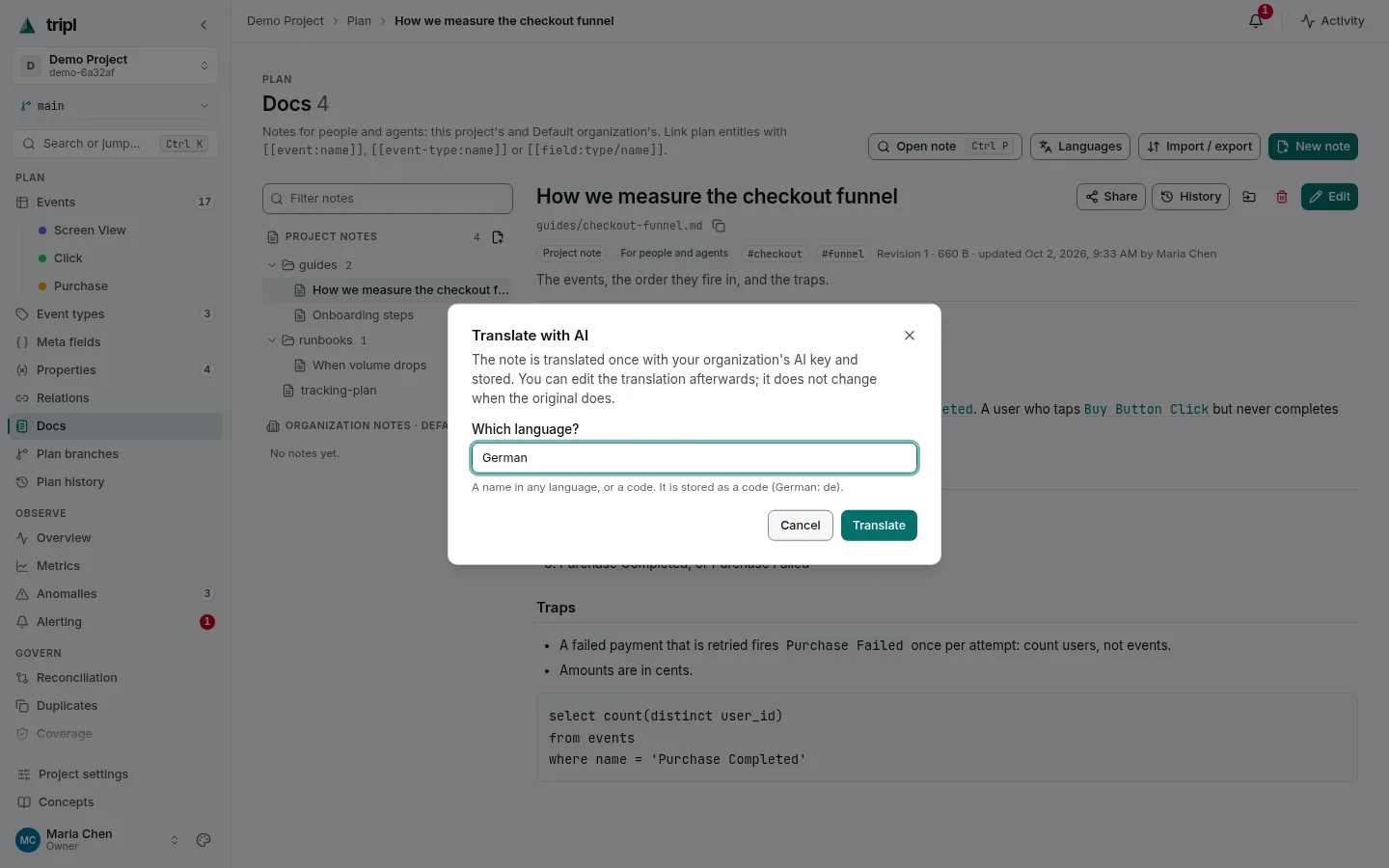
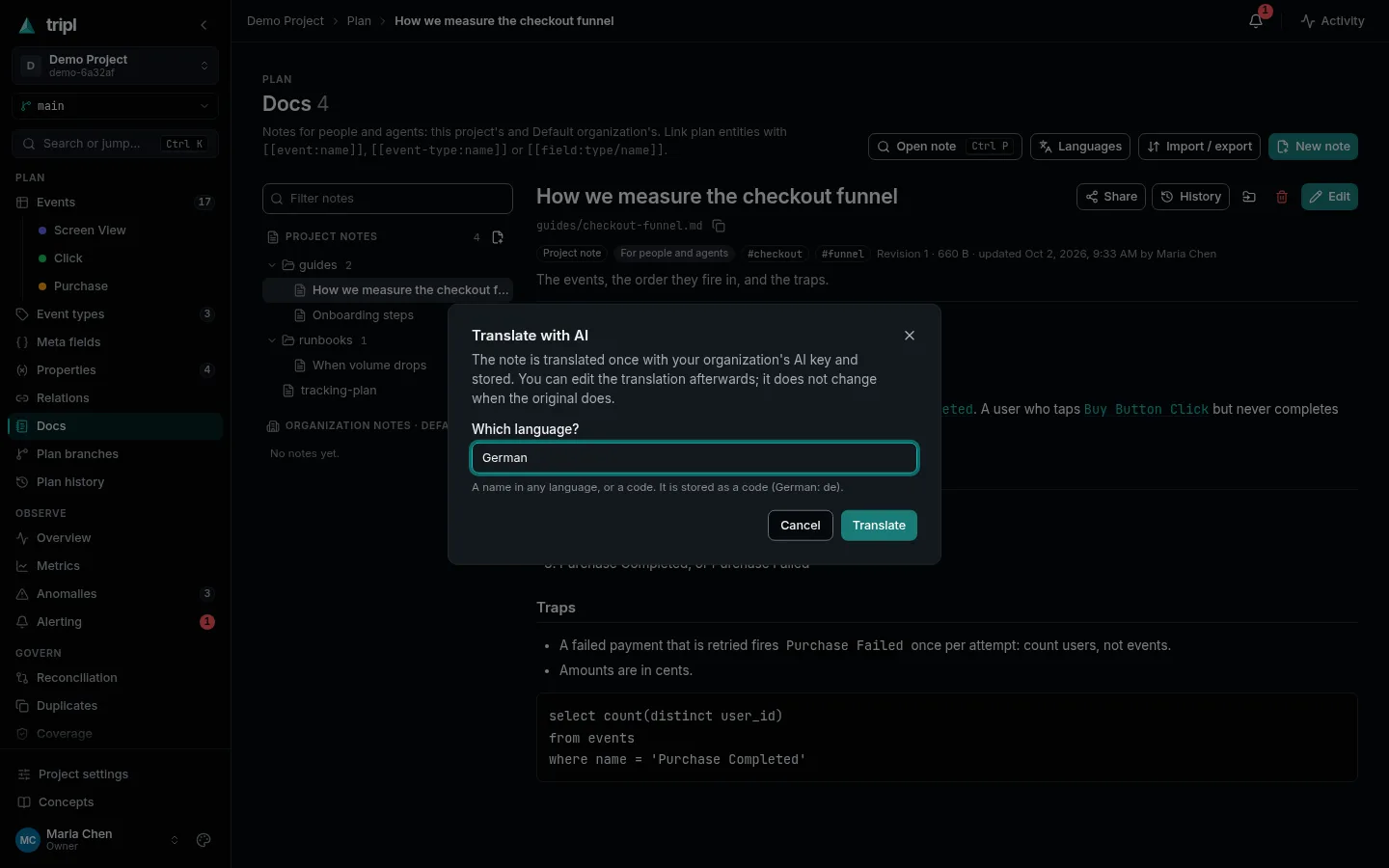
Translate with AI on an open note asks Which language? Type a name in
any language or a code: English, Deutsch, немецкий, pt-BR. A
two-letter code is used as typed; anything else is turned into a code (BCP 47,
such as de or pt-br) by your organization's AI model. The translation then
runs in the background with the organization's AI key (Settings → AI); the
note shows Translating into German… until it is ready. Editors of the note
can translate it; there is no spending limit.
What the model must not change is kept out of its reach: code blocks, inline
code, [[…]] links, link targets, URLs and HTML. A reply that drops or
repeats one of them is refused and the translation fails with a message; it
never breaks a link. In the frontmatter only title and description are
translated.
A translation is ordinary text afterwards:
- Edit while it is shown edits the translation, not the original. Every save is kept in its own history (History while it is shown), and any version can be restored. Translate again over a translation someone edited asks first; the edited text stays in the history.
- When the original changes, the translation is behind the original: it says which revision it was made from. Translate again makes it anew; Mark as up to date keeps the text and records it as matching the current revision.
- Delete a translation from the language row. Deleting the note deletes its translations.
A translation has no sharing of its own: whoever can read the note can read its translations, and whoever can edit the note can edit them. Search covers the originals only.
Default languages
Languages on the Docs page sets two defaults for the project:
- For agents: what the API, the MCP server and the CLI return when they
read a note without naming a language. They get the translation only when it
exists and is up to date; otherwise they get the original, with a field
saying why (
translation_fallback:missing,pending,failedoroutdated). An agent may ask for any language withlang=de, and gets that translation even when it is behind (translation_outdated: true), or forlang=original. - For people: the language the app opens notes in. Anyone can switch the
language of a note in its language row; the choice is kept in their browser
for that project and is part of the page address (
?lang=de), so a link opens the same language.
Empty means the original.
Import and export
A root can be exported as a zip of .md files or as a JSON bundle. The export
holds each note's content exactly as stored, frontmatter included, so an export
followed by an import changes nothing.
An import takes a zip or a JSON bundle:
- Only
.mdfiles are imported. Other files, such asscripts/, images orassets/, are listed as skipped and never cause a failure. - A zip whose entries all sit in one top-level folder (for example
my-skill/SKILL.mdandmy-skill/references/schema.md) is unpacked without that folder unless you choose to keep it. So an agent-skill folder imports asSKILL.mdplusreferences/. - Merge creates and updates notes. Mirror also deletes the notes that the import does not contain, and the translations it does not contain.
- A file named
<note>.<lang>.mdnext to<note>.md(for exampleguides/setup.de.md) is imported as that note's translation, when no note lives at that path.notes.v2.md, orrelease.en.mdwith norelease.md, stay ordinary notes, and thenrelease.en.de.mdis the German translation ofrelease.en.md. An imported translation counts as up to date, even when its text is unchanged. - A dry run shows what would be created, updated, left unchanged, deleted, skipped or refused, and changes nothing.
- An import with any error (a bad path, invalid frontmatter, a note that is too large, or two paths that differ only in case) changes nothing and lists the errors.
The Import / export button on the Docs page does both. It picks the root,
exports a zip or JSON, and imports a .zip or .json file with Merge or
Mirror. Import is enabled only after Preview (dry run) has run
without errors. Only organization owners and admins can import organization
notes, and mirroring them needs one signed in to the web app.
Layout of an export
A zip export is named <project-slug>-docs.zip for project notes and
<organization-slug>-docs.zip for organization notes. Every note is one entry
at its own path, with its content exactly as stored, and each translation is
<note>.<lang>.md beside its note (left out if a note already has that path).
The zip has no index file and no wrapper folder. tripl docs pull writes the same layout into a local
folder.
Example: an agent skill
An agent skill is a folder with a SKILL.md and some reference notes. It can
also hold scripts. Here is a generic skill that teaches an assistant how to
query events:
event-query-recipes/
├── SKILL.md
├── references/
│   ├── warehouse-gotchas.md
│   └── funnel-queries.md
└── scripts/
    └── run_query.py
SKILL.md uses the usual skill frontmatter. tripl takes the title from name
and keeps allowed-tools unchanged:
---
name: event-query-recipes
description: How to query tracked events in the warehouse without double counting
allowed-tools: [Read, Bash]
audience: agent
tags: [warehouse, sql]
---

# Event query recipes

Read references/warehouse-gotchas.md before you write a query.
Each recipe names its events, such as [[event:checkout_started]] and
[[event:purchase]], so the links show which plan entries it depends on.
references/warehouse-gotchas.md is an ordinary note:
---
title: Warehouse gotchas
audience: both
---

- A retried request is sent again with the same `event_id`. Deduplicate on it
  before you count.
- [[field:checkout/amount]] is in cents.
Zip the folder and import it into a root. Every Markdown entry sits in the
top-level folder event-query-recipes/, so tripl removes that folder:
| Entry in the zip | Result |
|---|---|
event-query-recipes/SKILL.md | created as SKILL.md |
event-query-recipes/references/warehouse-gotchas.md | created as references/warehouse-gotchas.md |
event-query-recipes/references/funnel-queries.md | created as references/funnel-queries.md |
event-query-recipes/scripts/run_query.py | skipped: not a Markdown (.md) file |
To keep the folder, check Keep the zip's top-level folder in the dialog.
In the API this is keep_root=true, and in the CLI it is
tripl docs push --keep-root. The notes are then stored as
event-query-recipes/SKILL.md and so on, so several skills can share one
root. The same import from a local folder with the CLI:
tripl docs push ./event-query-recipes --project shop --scope project
An export of that root contains SKILL.md and the two references/ notes,
with their frontmatter unchanged. Unpack it into a folder and an agent can use
it as a skill again. scripts/run_query.py is not in the export, because
tripl never stored it. Keep files that are not Markdown somewhere else, such as
a git repository.
Limits
| Limit | Value |
|---|---|
| One note | 256 KiB of UTF-8 |
| One translation | 768 KiB of UTF-8 |
| Frontmatter block | 16 KiB |
| Notes per root | 5000 |
| Files in one import | 2000 |
| Total size of one import | 20 MiB (uncompressed) |
| Zip upload | 10 MiB, with a compression ratio of at most 100:1 per file |
| Plan links per note | 500 |
Search
Notes appear in the command palette's search, and in the plan search that the AI assistant and agents use, as the Docs type. A result opens the note. Search covers the title, description, tags, path, body and linked names.
For agents
Agents use the same notes through the API (/projects/{slug}/docs), the MCP
tools list_docs, read_doc, search_docs and write_doc, and the CLI
(tripl docs ls, cat, pull and push). See the
Agent API guide.
An agent sees what the user behind its API key sees: notes that are not shared
with that user are missing from every list, search and read. A read without a
language returns the project's language for agents when that translation is up
to date (see Default languages); read_doc and
tripl docs cat take lang (--lang) to ask for one.