Draft your tracking plan from a scan
You will: turn the events already landing in your warehouse into a written tracking plan, and start collecting the counts that monitoring runs on.
You need: a connected warehouse, a project, and to be an owner or admin of the organization (a scan runs SQL against the warehouse, so creating one is theirs to do).
A scan reads a table. Each run adds the events and fields it finds to your plan; a scan that also has a schedule collects volume counts on it, and those counts are what anomaly detection and alerts are built on.
1. Start a new scan
In your project, open Govern → Scans and press New scan.
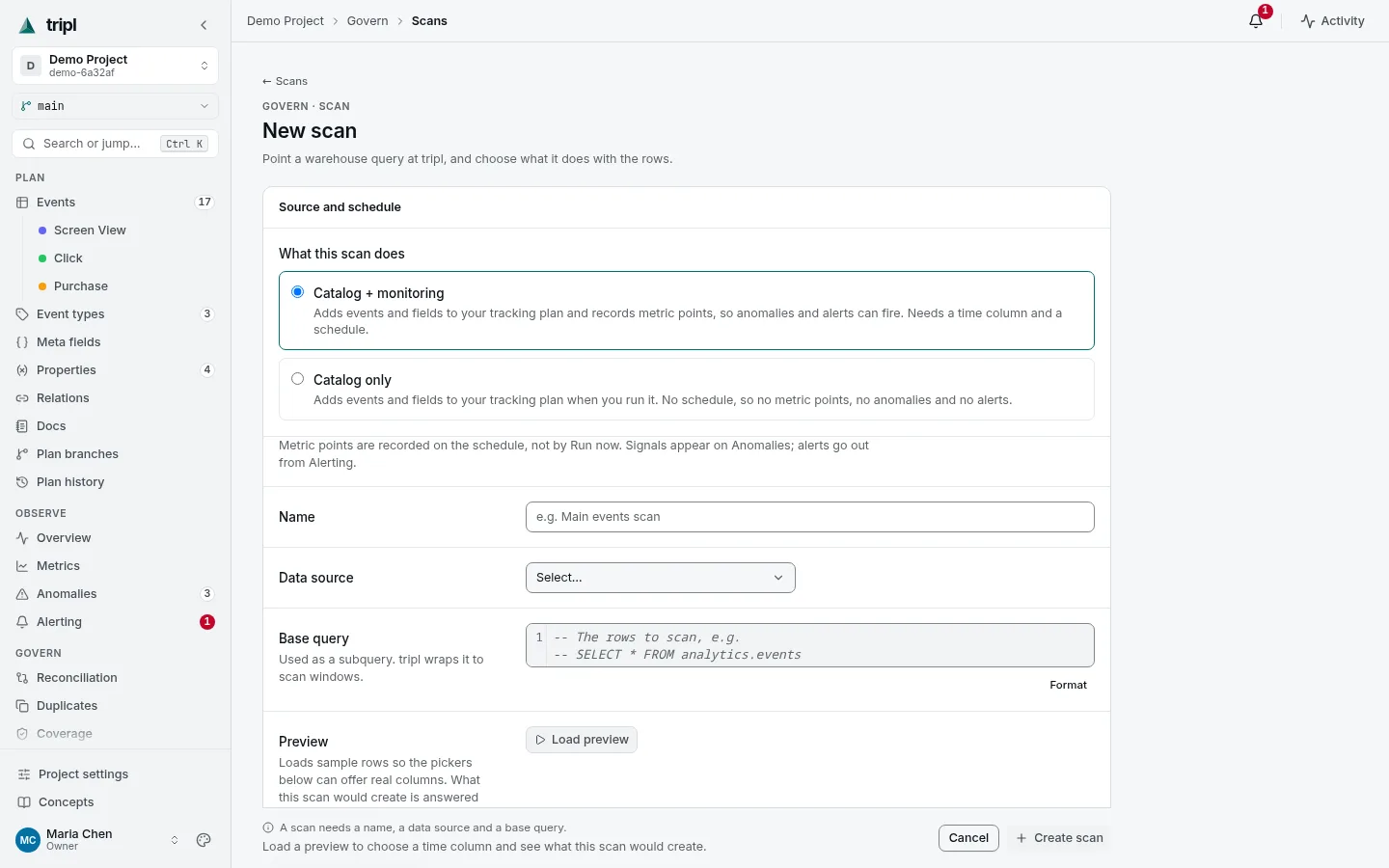
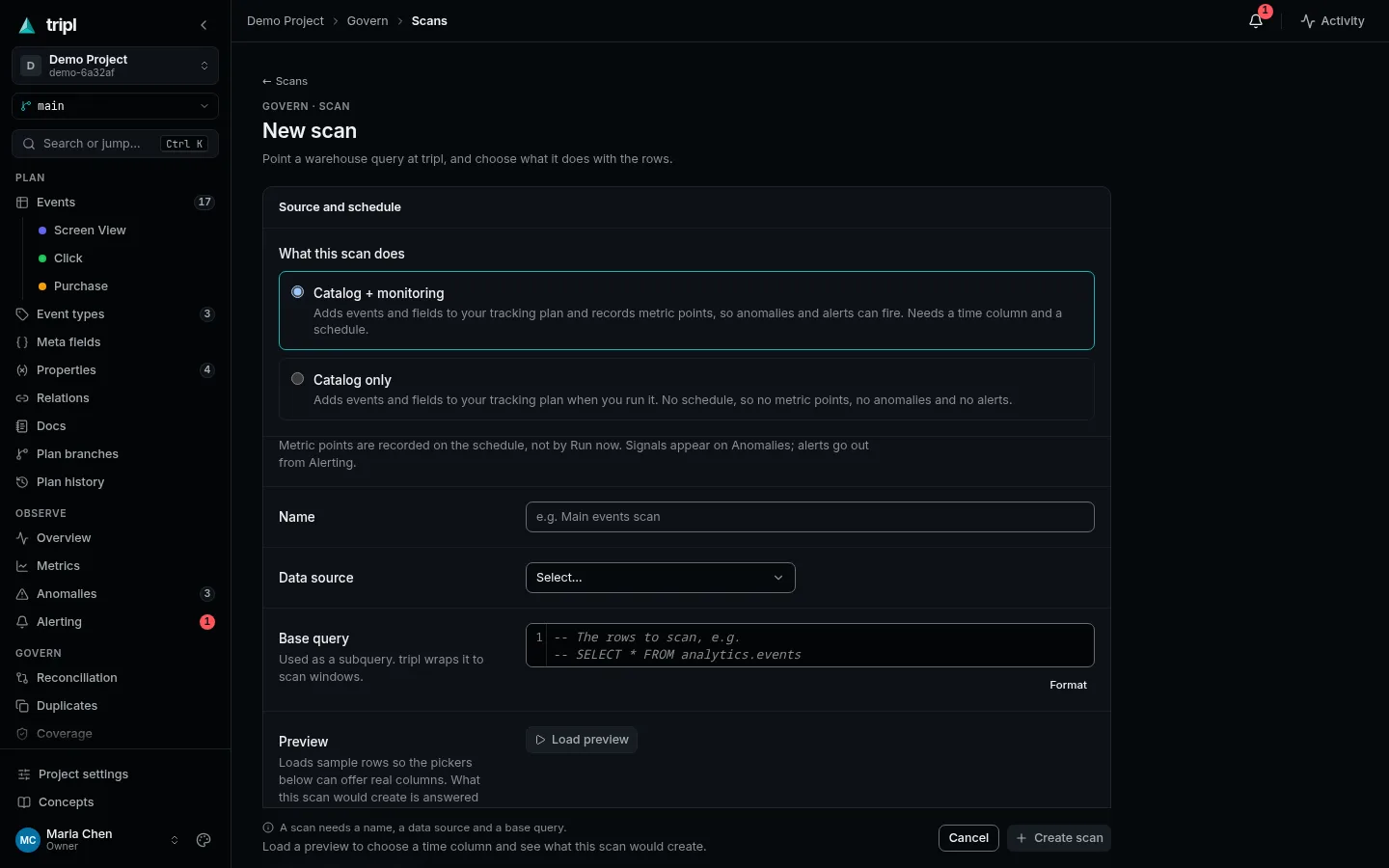
The first question decides the rest:
- Catalog + monitoring adds events to the plan and collects volume on a schedule. Pick this one unless you have a reason not to.
- Catalog only adds events to the plan when you run it, and collects nothing.
2. Point it at your events
- Give it a Name and pick the Data source.
- Write the Base query: usually just the table, such as
SELECT * FROM analytics.events. tripl uses it as a subquery, so aWHEREthat leaves out test traffic belongs here too. - Press Load preview. tripl reads a few rows so the next questions can offer your real columns. Nothing is written.
3. Answer what the columns unlock
- How events are stored. If each row is one event, with a column holding the event's name and a JSON column holding its properties (Segment, RudderStack, Amplitude and Mixpanel exports look like this), choose Event + properties and pick the two columns. Otherwise keep Custom and choose where event names come from.
- Time column: the row's timestamp. tripl counts by it.
- Schedule: how often to collect, from every 15 minutes to weekly. Hourly is a good start.
At the bottom, What this scan would create lists the events and fields a run would add, worked out from the sampled rows by the same code a real run uses. Read it before you save: it is the cheapest place to notice that a naming rule is wrong.
4. Create it and run it
Press Create scan, then Run now on the scan's page.
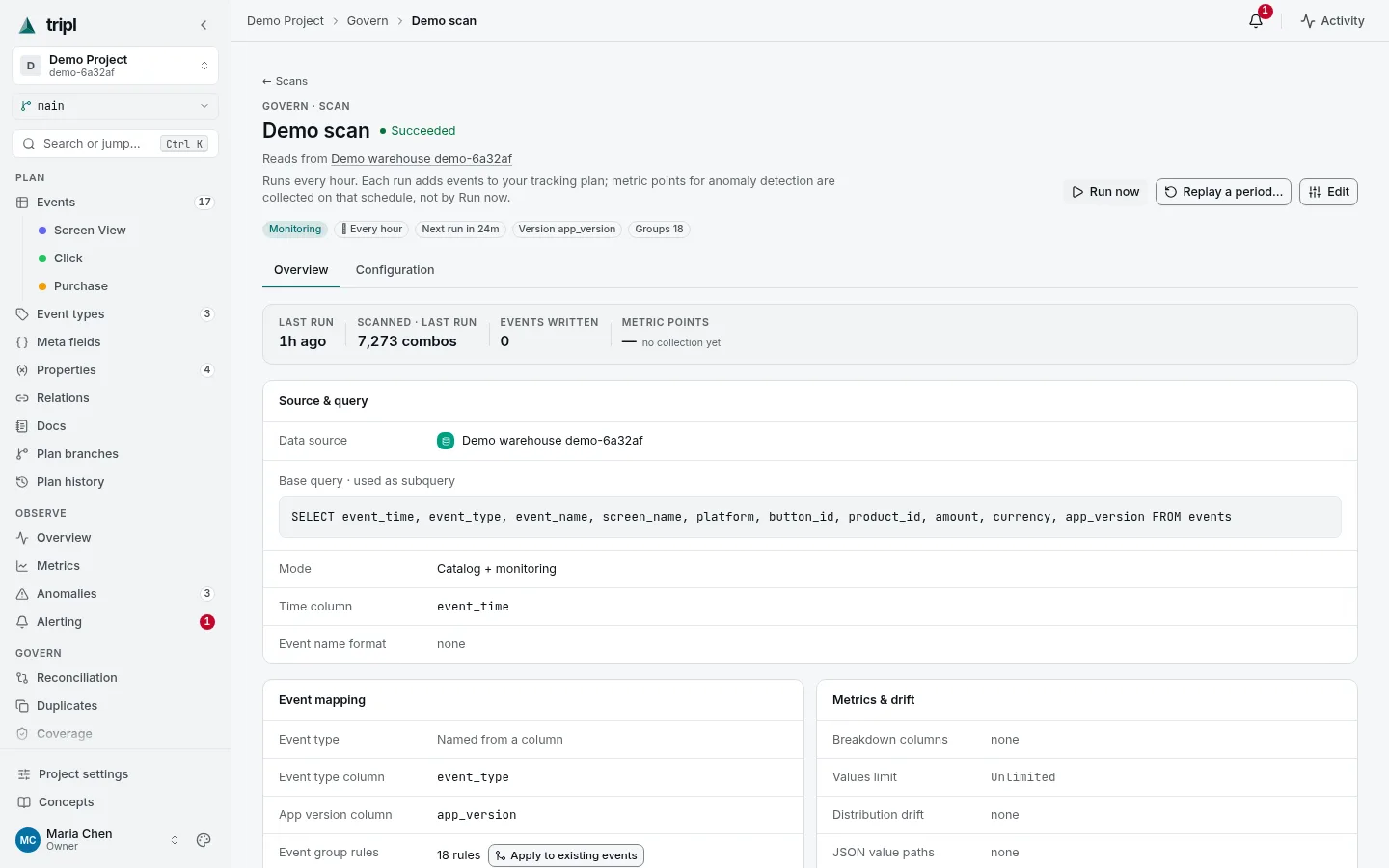
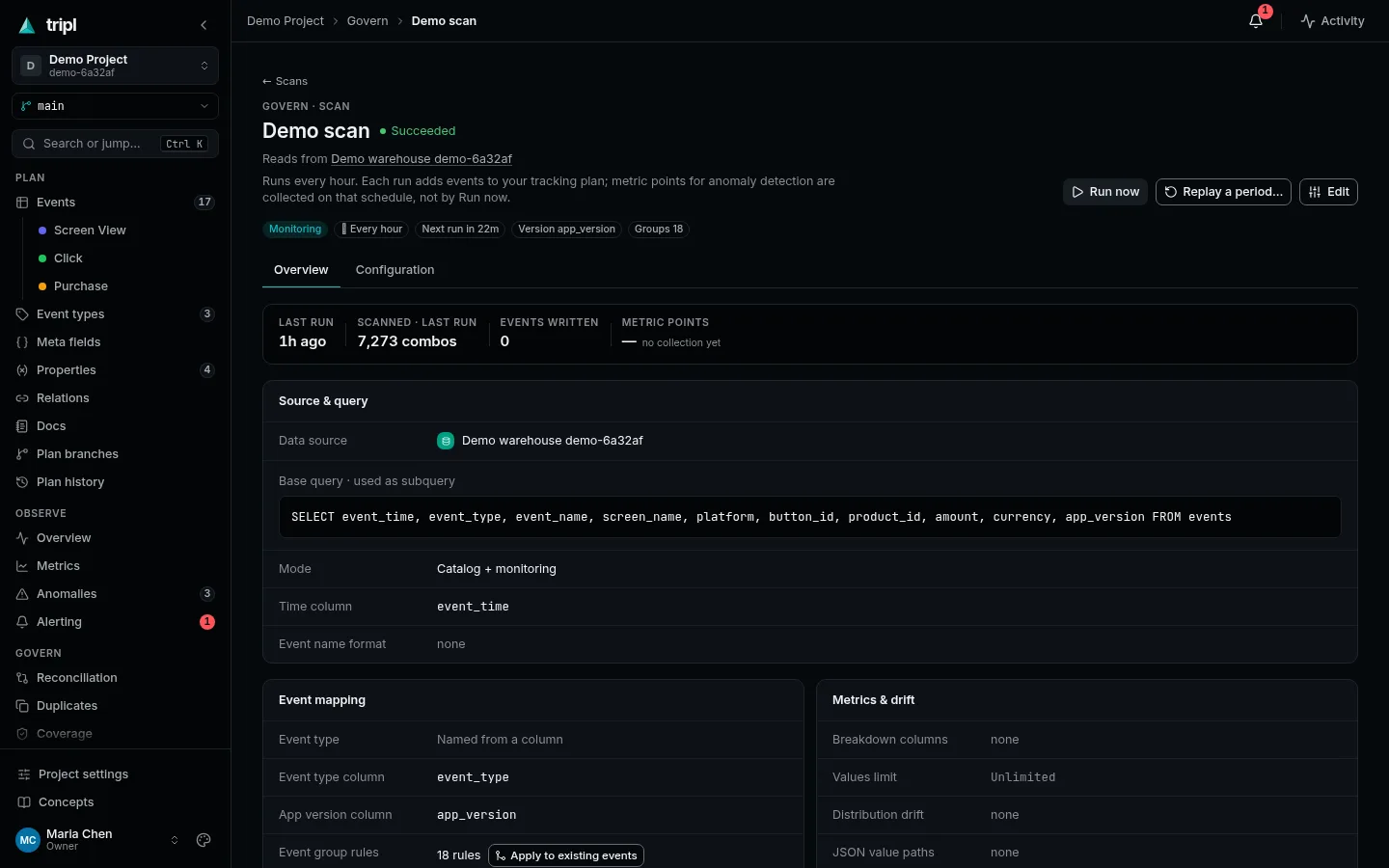
The run appears under the scan with its progress, and its summary says what it wrote. Run now fills the plan; the volume counts arrive on the schedule, so charts start filling within an interval or two.
5. Tidy the draft
Open Plan → Events. The scan's events are there. Work down the list: write a description a newcomer would understand, set the status, flag fields that carry personal data, and archive the noise.
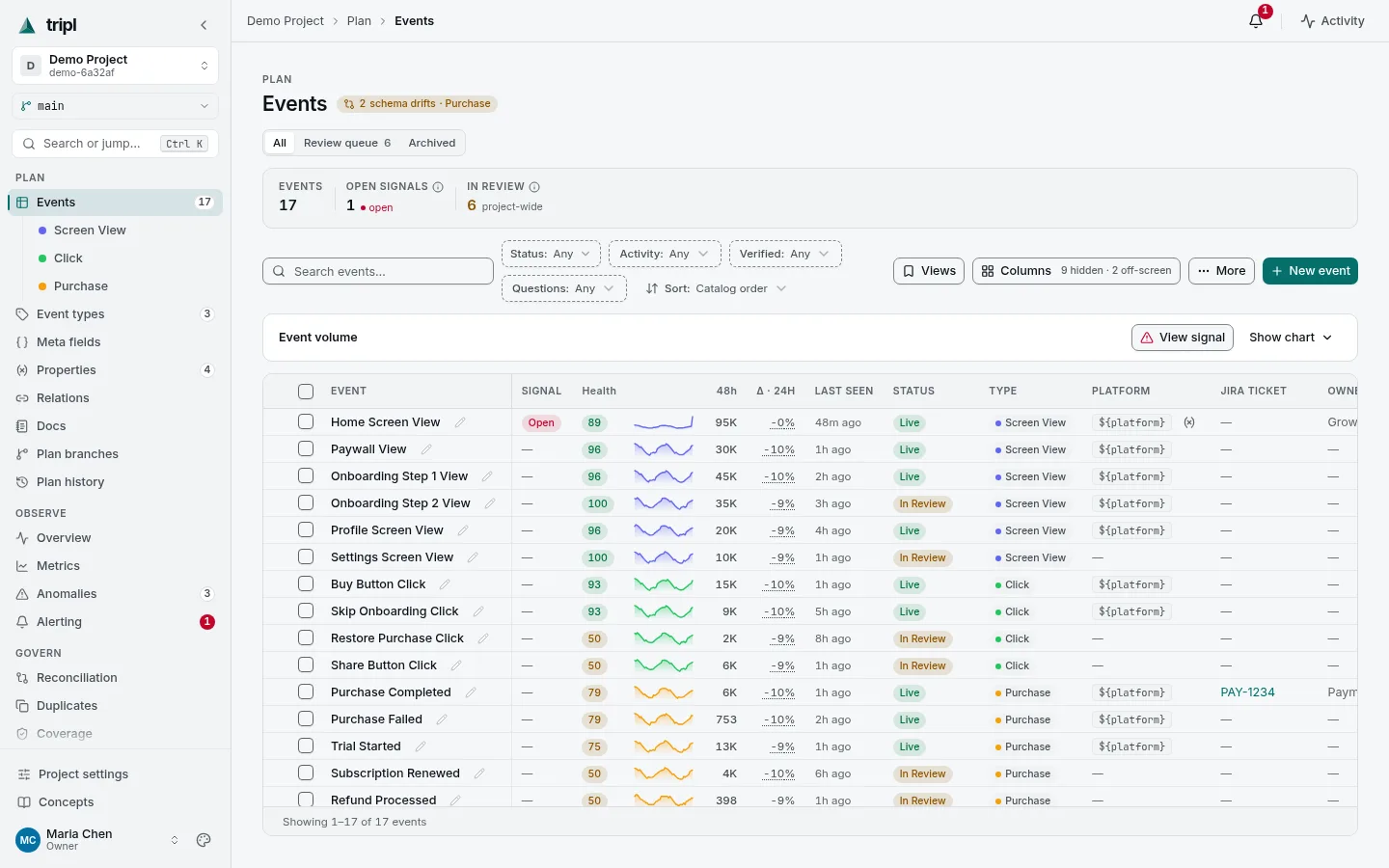
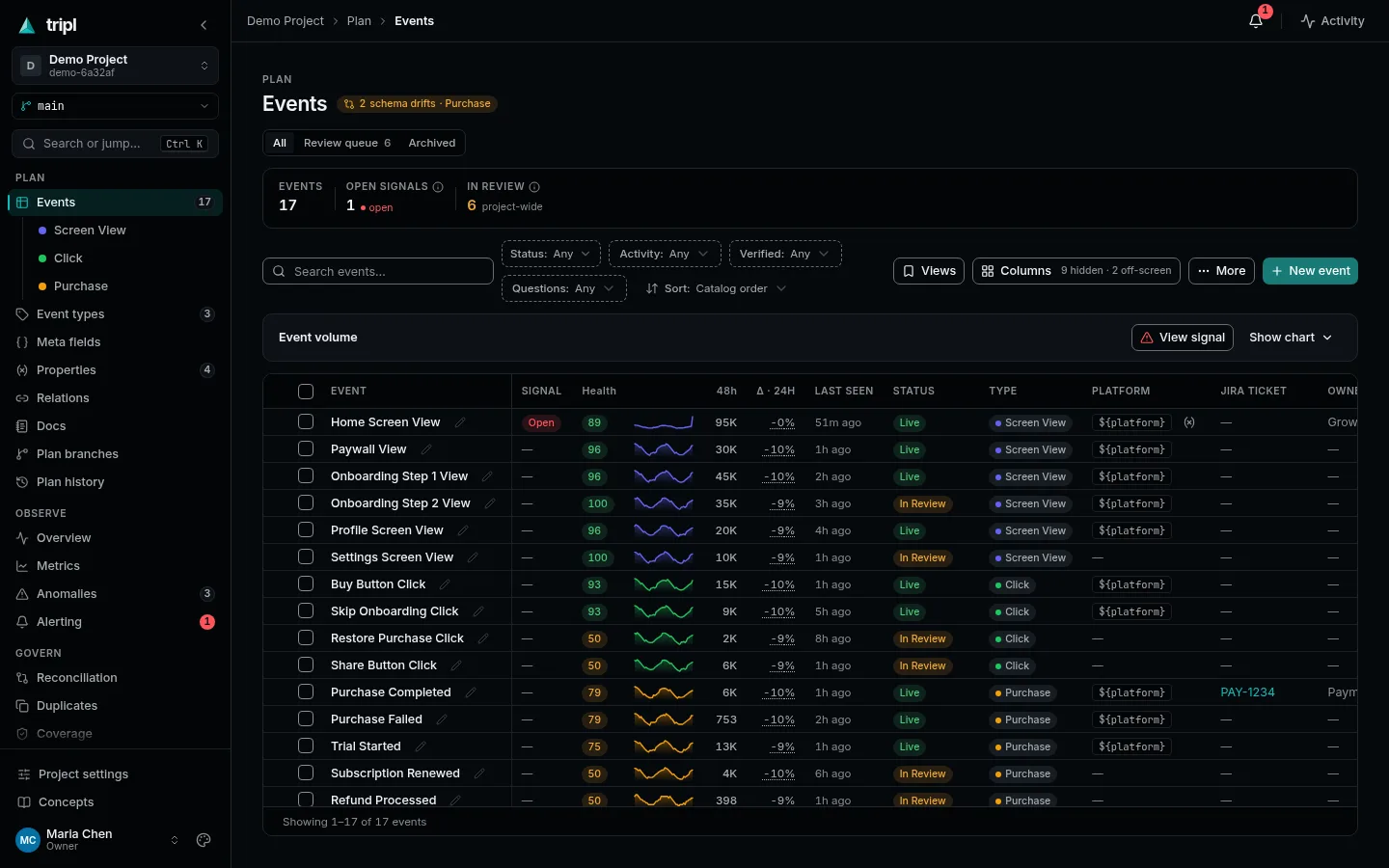
Tick several rows to change their status or owner in one go. The Review queue tab lists the events whose status is In Review. See Add or change an event for the event form itself.
Next
Once the scan has collected for a while, tripl knows what normal looks like for each event. Get a message when the numbers move.
More detail: Quick Start, step 5 walks every field of the scan form, and the Feature Reference covers naming rules, event groups, app versions and source freshness.