Invite your team
You will: bring a teammate in and decide what they can see and change.
You need: to be an owner or admin of the organization.
Access has two layers, and it helps to know them before you start:
- The organization role (owner, admin or member) says who runs the place. Owners and admins see every project and manage people and data sources. Most people are members. (API keys are personal: everyone creates and revokes their own.)
- The project role (editor or viewer) says what a member may do in one project. Editors change the plan and the alerts; viewers read.
1. Send an invitation
Open the settings, then Invitations in the Organization group. Enter the person's email, keep the role at Member unless they will run the organization, and press Create invite link.
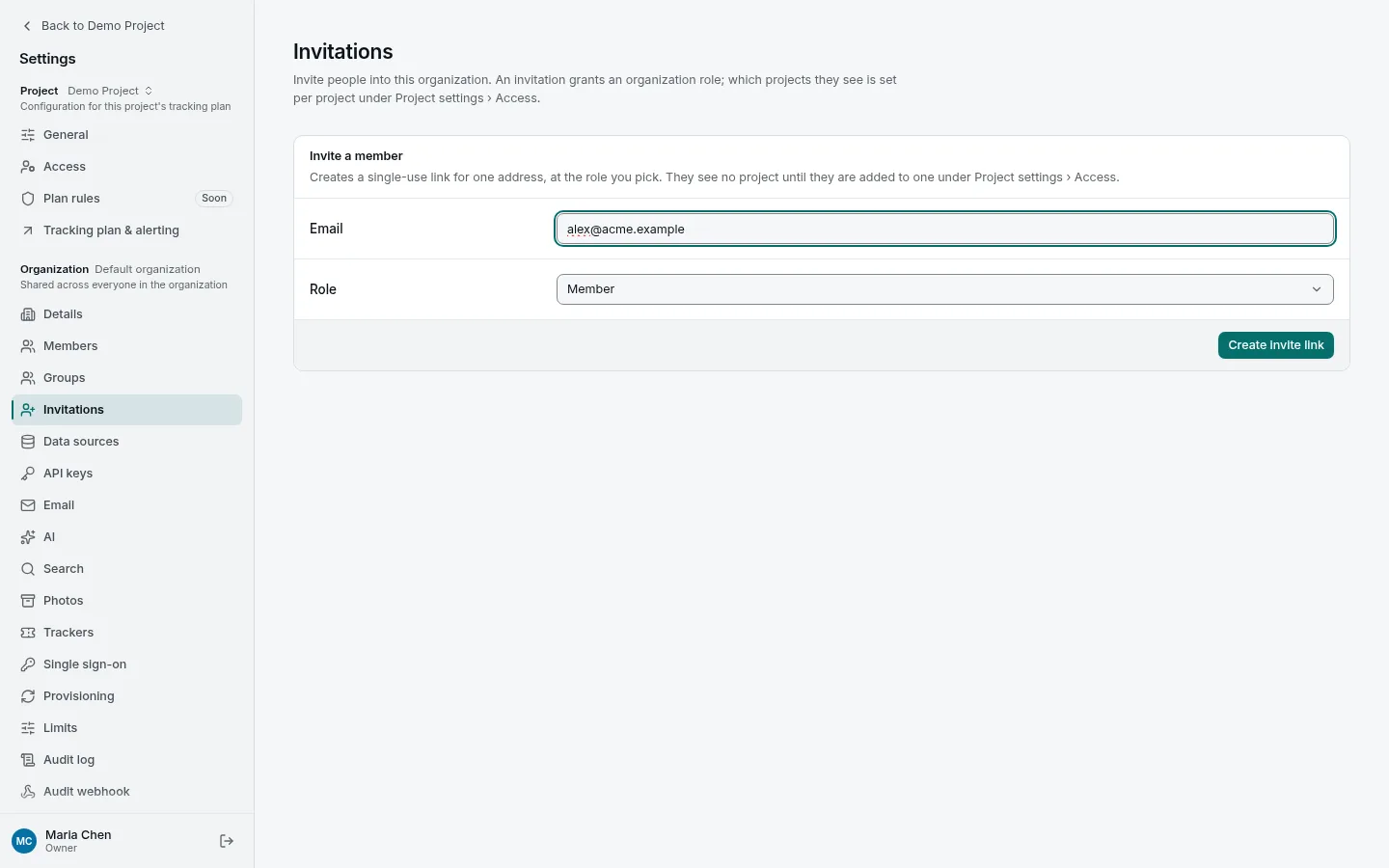
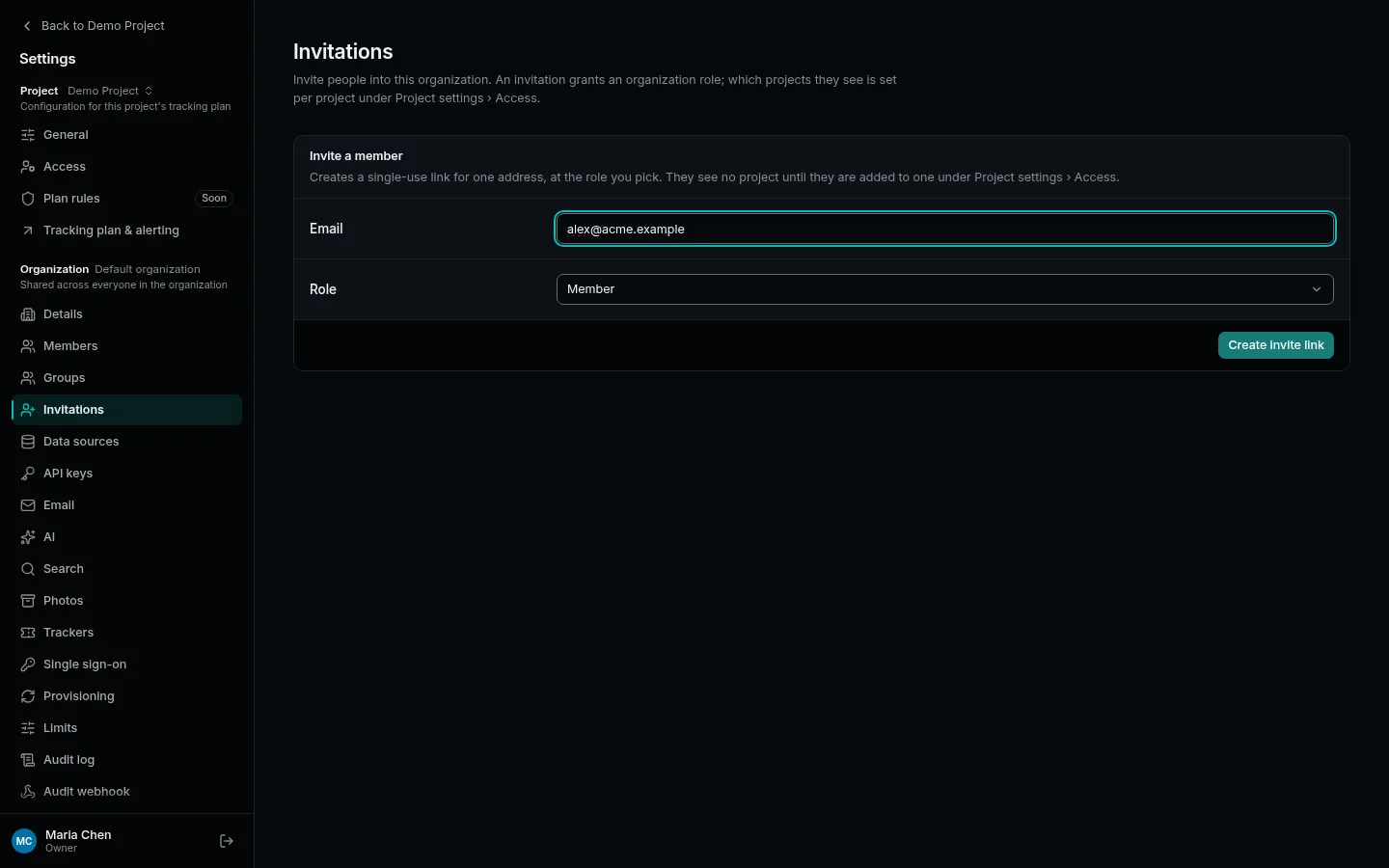
Copy the link it shows you. It appears only once, so send it straight away over chat or email. When the instance has email set up, tripl also mails it to the address. They open it, choose a password, and they are in.
On a public demo, tripl only creates the link and sends no email. Invitations always grant Member. The colleague signs in with Google using the invited address, then returns to the link and accepts it. They keep their own workspace and gain Viewer access to the inviting organization's demo projects: the ones ready when they accept, and every demo generated there afterwards. See Public demo limits.
2. Give them a project
A new member normally sees no projects yet; a public-demo invite grants the organization's demo projects as described above. Open the project, then Project settings → Access, and add them as an Editor or a Viewer.
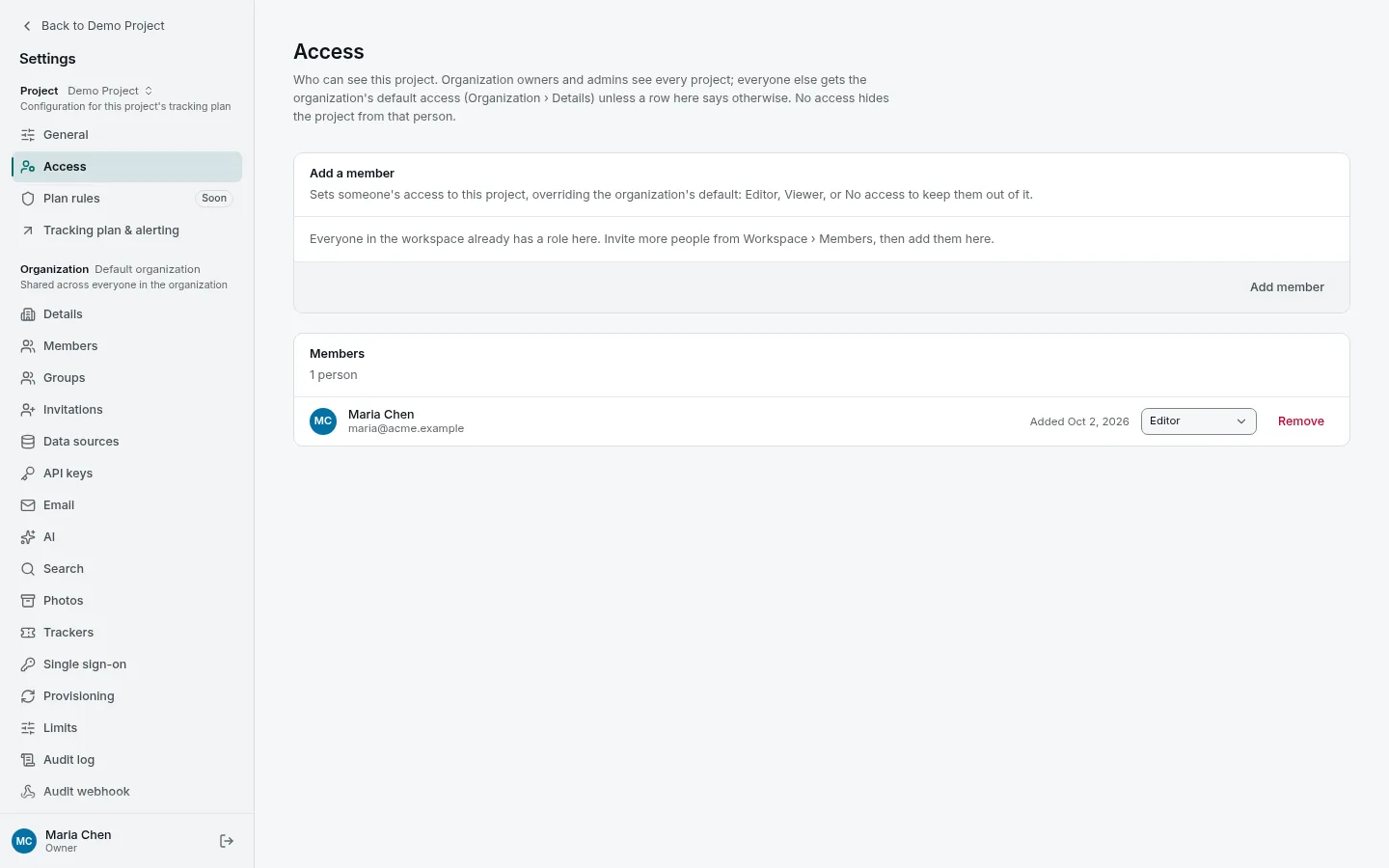
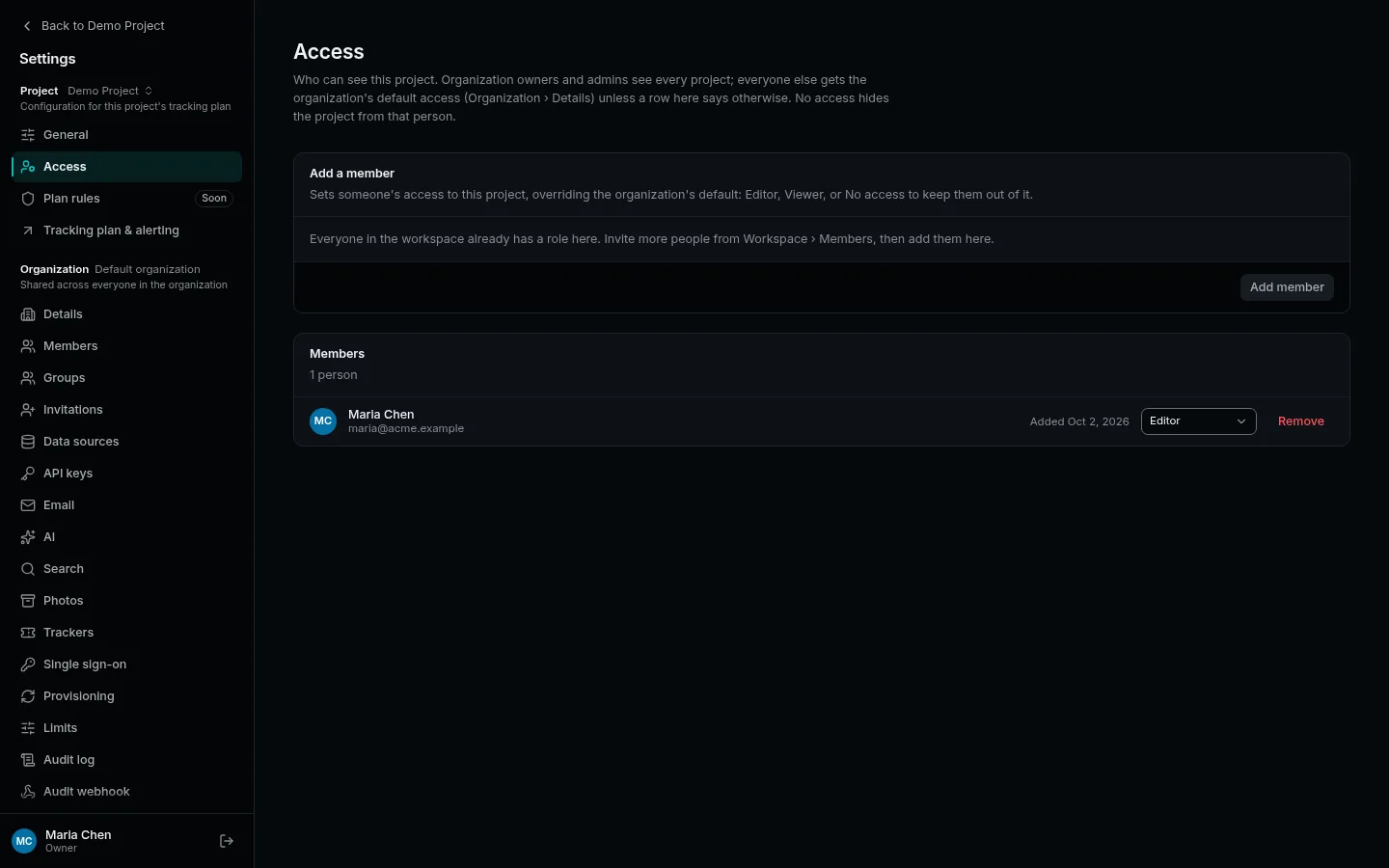
The same page changes someone's role later, or removes them from the project.
If every member should see every project, set the organization's default access to projects to viewer or editor under Organization → Details. A row on a project's Access page still overrides it for that project, and No access there keeps someone out.
Next
Signing in with your company's identity provider, groups and automatic provisioning are covered in the Administration guide, along with what each role may do in detail.