Propose plan changes for review
You will: change the plan without touching the version everyone relies on, have a teammate look at exactly what changed, and then make it live. It works like a pull request, for a tracking plan.
You need: to be an editor of the project.
1. Create a branch
Open Plan → Plan branches and press New branch. Name it after the change, say what it is for, and leave Switch to this branch now ticked.
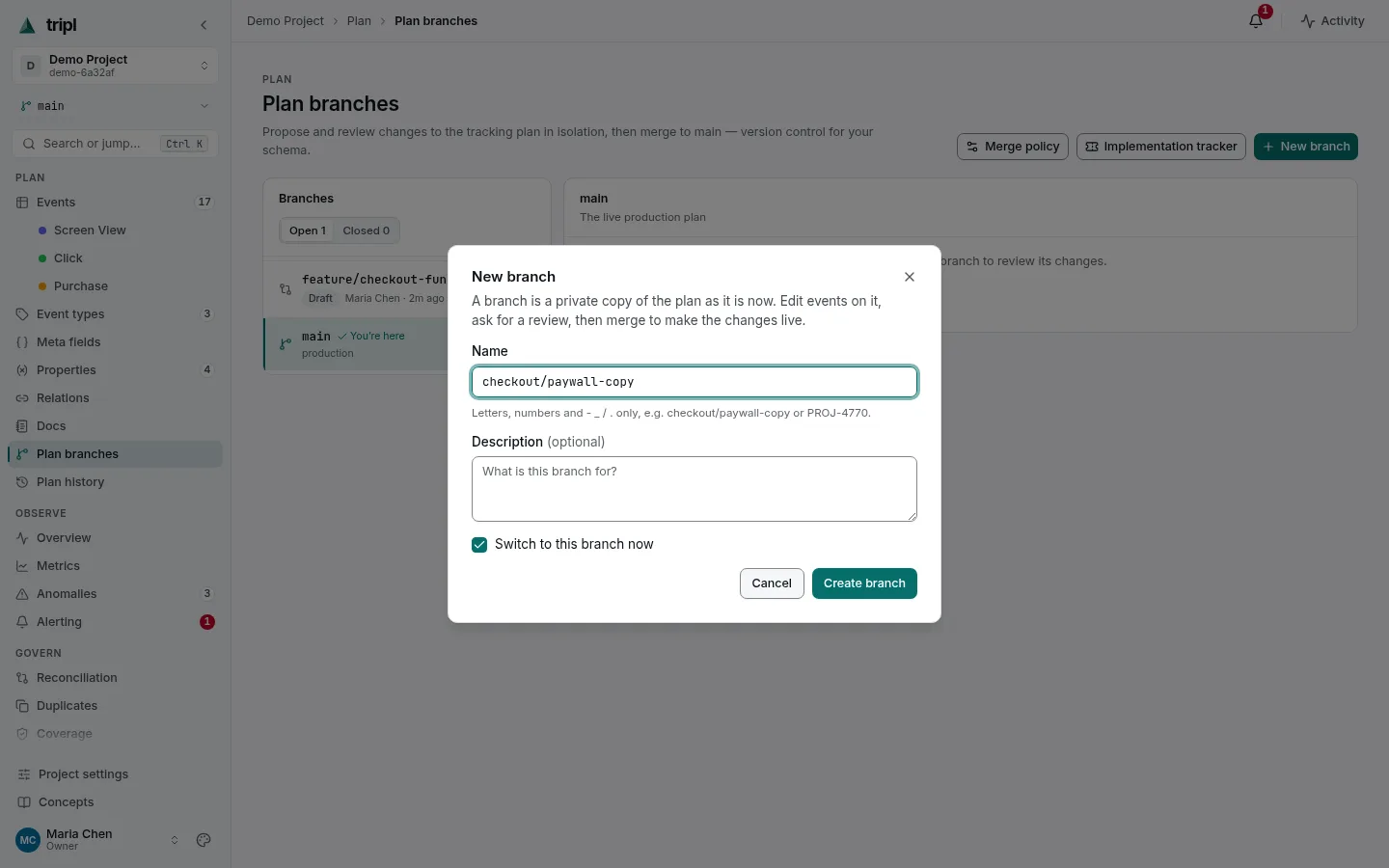
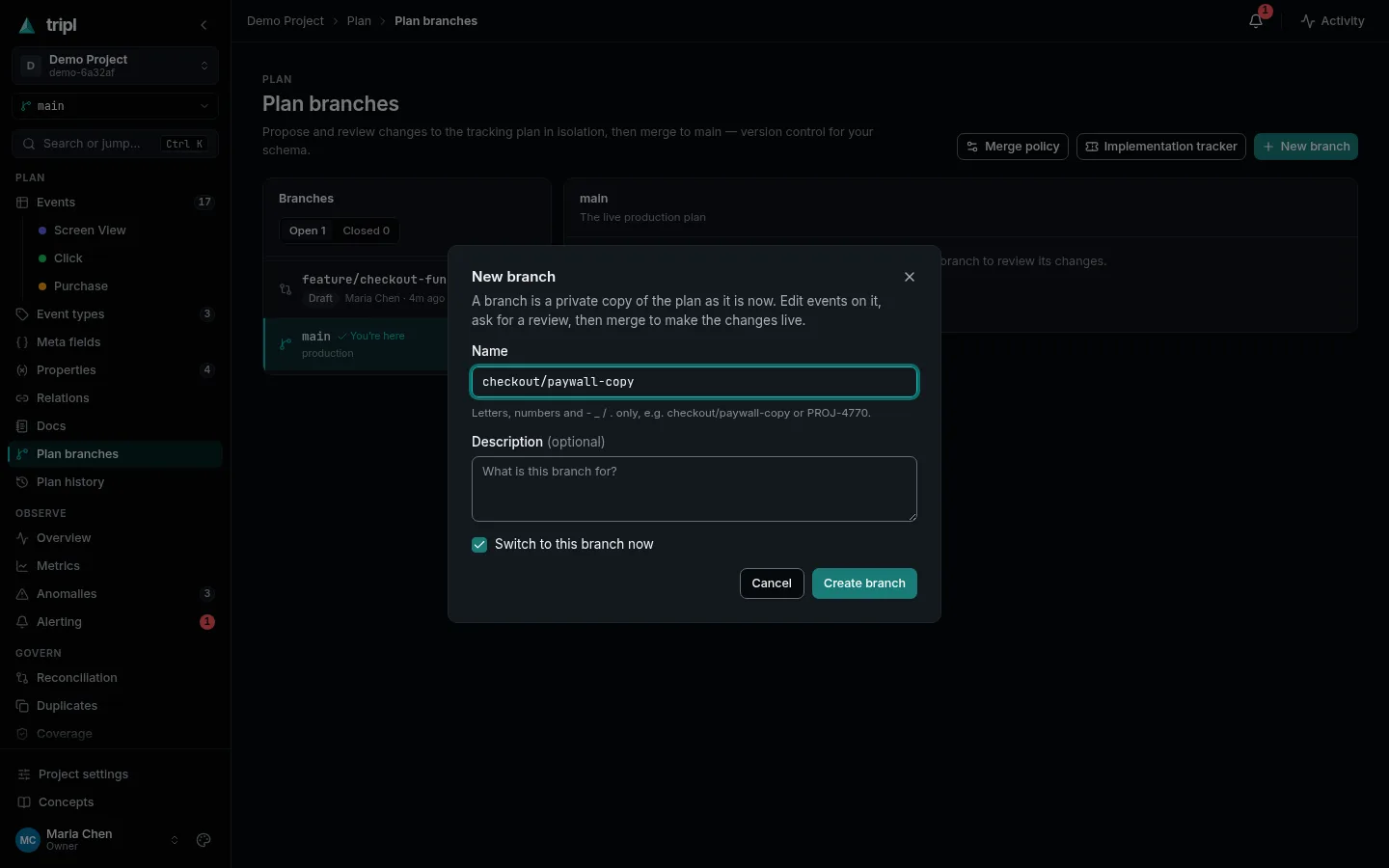
A branch is a private copy of the whole plan as it is now. The branch switcher at
the top of the sidebar shows which copy you are in, and a strip under the top bar
offers the way back to main.
2. Make your changes
Work as usual: add events, edit descriptions, change fields. Every plan page now
reads and writes the branch, and main stays exactly as it was. Anything you
open from a branch carries it in the address (?branch=), so a link you send
opens the same copy.
3. Ask for a review
Back on Plan branches, select your branch. Its page shows the review steps (Draft · In review · Approved · Merged) and, under Changes, every entity the branch changed. Expand a row to see the change field by field.
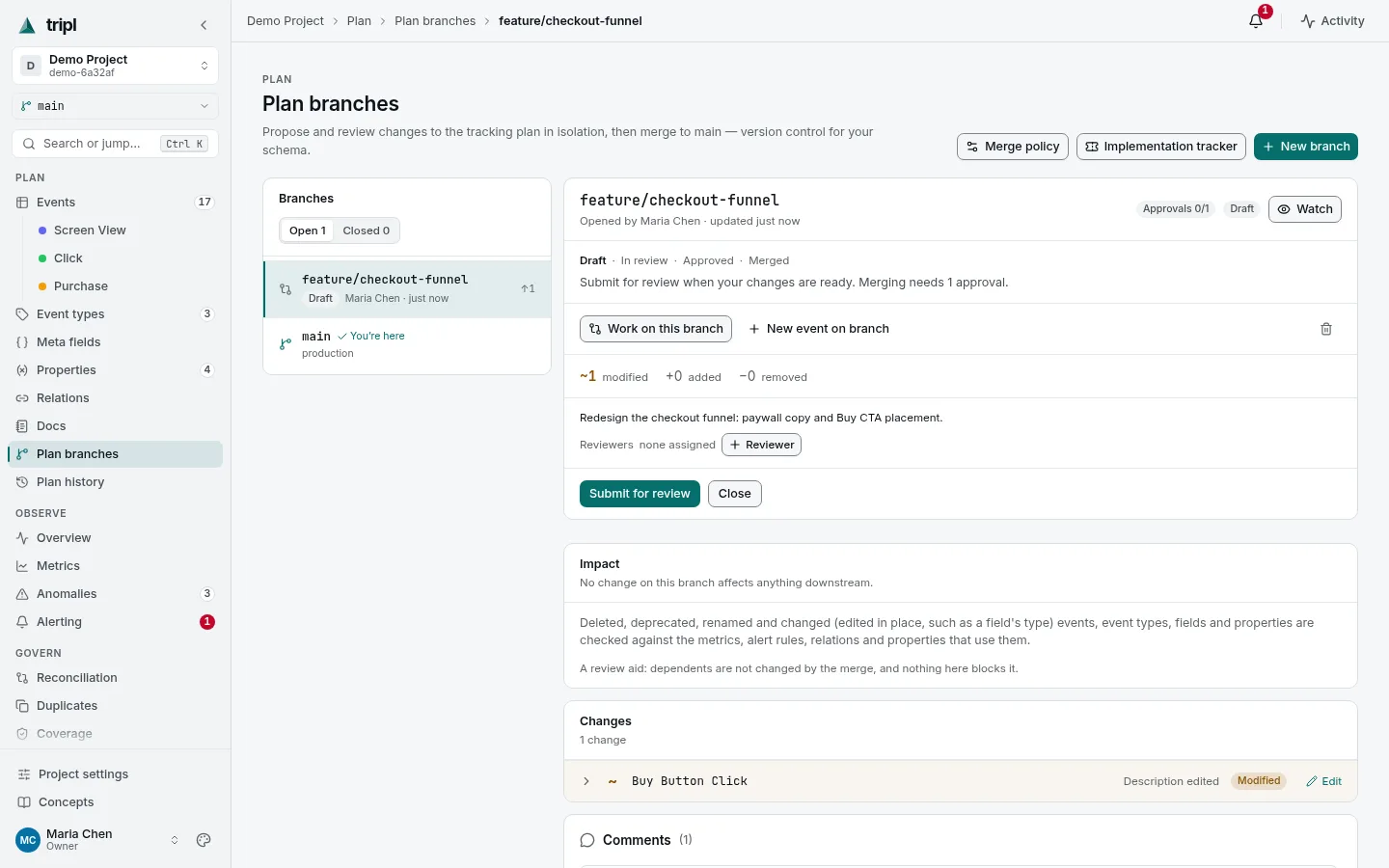
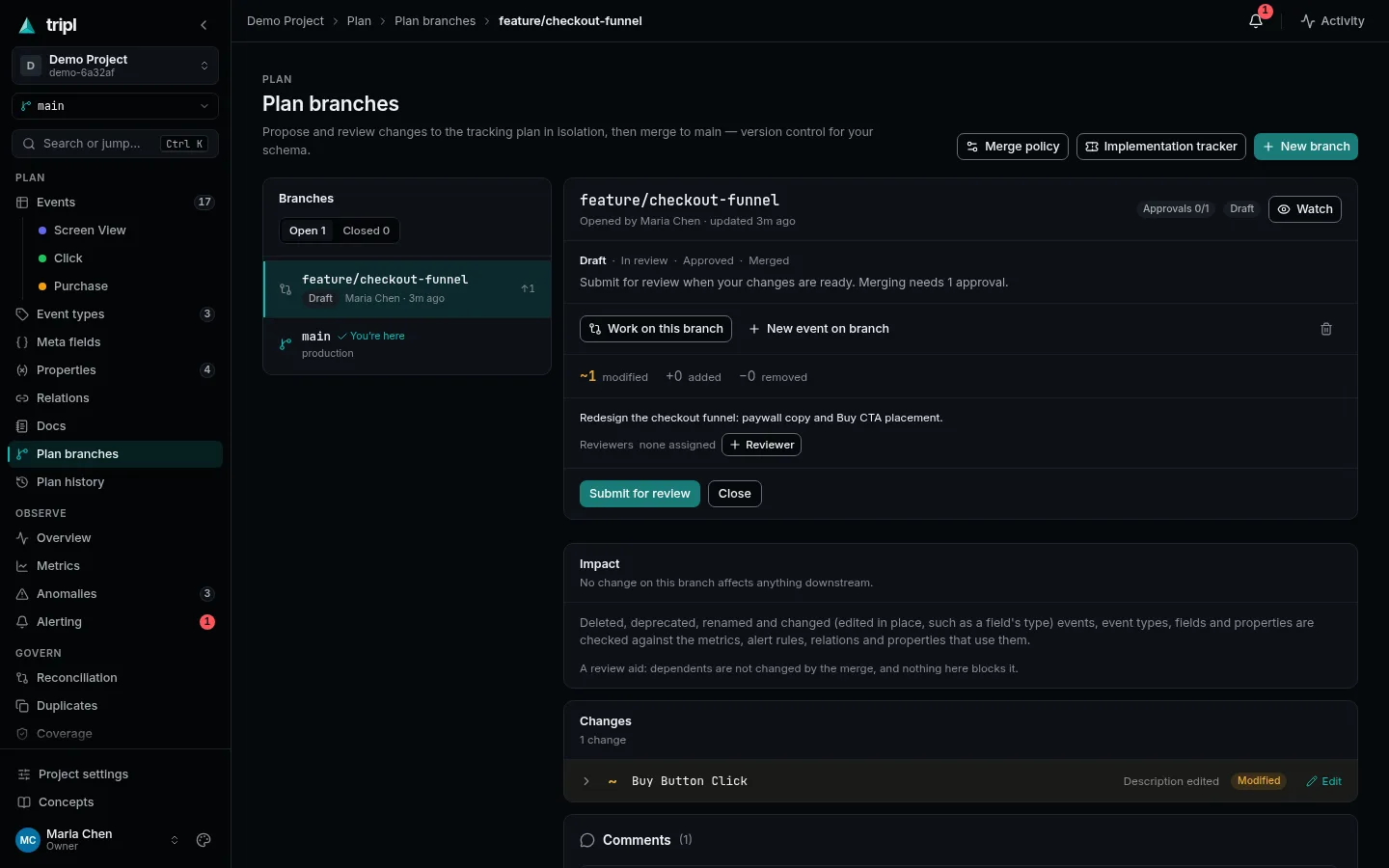
- Press Reviewer next to Reviewers and pick who should look.
- Press Submit for review.
- Send the reviewer the branch's link. tripl does not notify them for you.
Changed your mind about one edit? Expand its row and press Revert: that one change goes back to how the plan was when the branch was opened.
4. Review and merge
The reviewer reads the changes, leaves comments, and presses Approve or Request changes. Once the branch has the approvals it needs, Merge to main makes the changes live.
A merge matches events by name, so an event's metrics, history and alerts stay
attached to it. If main changed the same thing differently in the meantime, the
merge reports a conflict, and Update from main on the branch lets you choose,
change by change, which side to keep.
Review is the safety net: it is far easier to spot a mistake in a diff than to put it right afterwards. After a merge, a wrong change is fixed by another branch that sets it back.
Next
Owners can require more than one approval, or stop authors approving their own branches, under Merge policy on the Plan branches page.
More detail: Plan safely with branches
in the User Guide covers updating a branch from main, renames, and recovering
from a mistake.