Get a message when the numbers move
You will: have tripl tell the right people, in Slack, Telegram, Microsoft Teams, email, a webhook, Jira, Linear or PagerDuty, when an event drops or spikes beyond what its own history says is normal.
You need: to be an editor of the project, and a scan that collects on a schedule. Detection learns each event's normal rhythm from those collections and raises a signal when something moves; alerts are sent from signals.
1. Add a destination
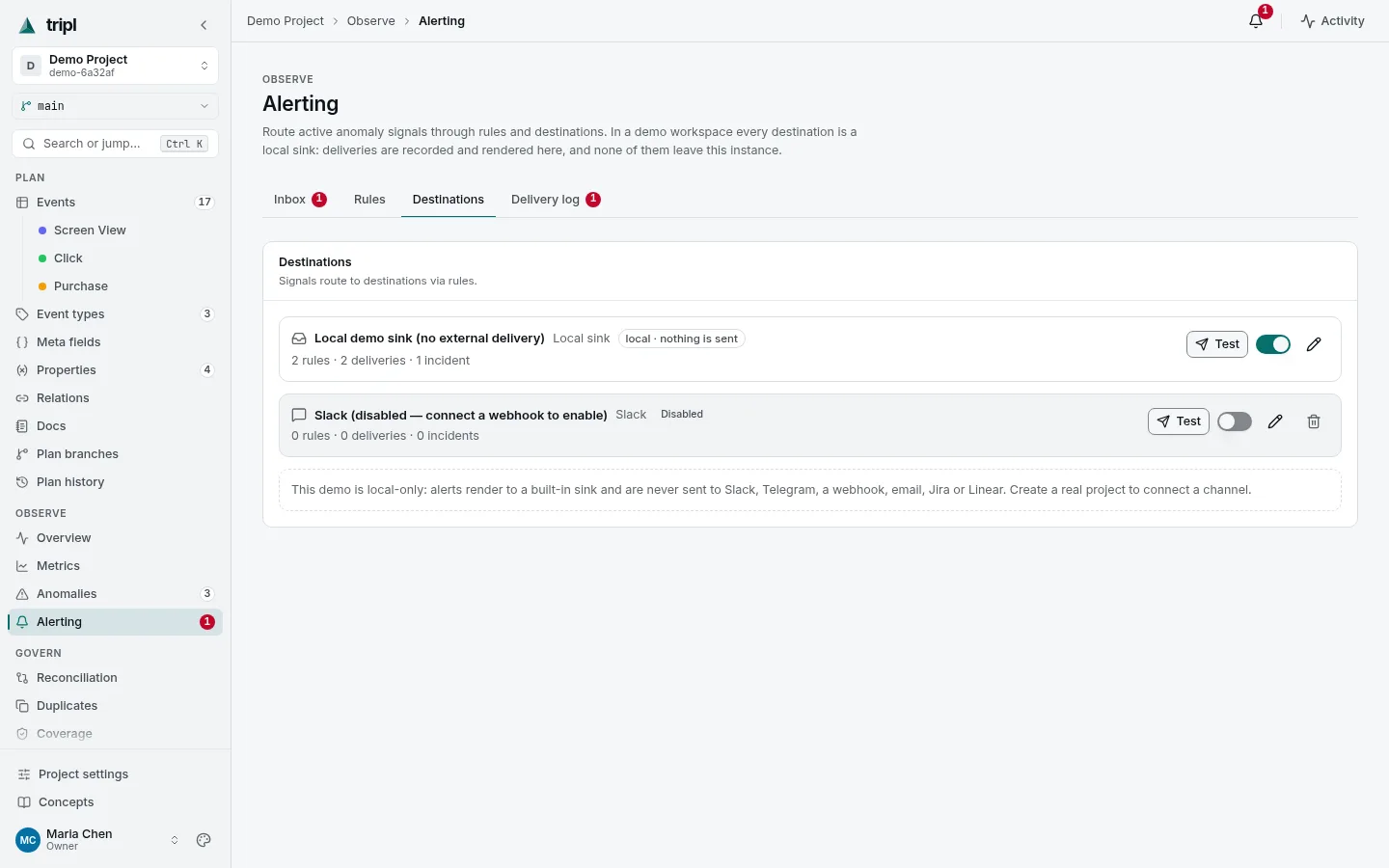
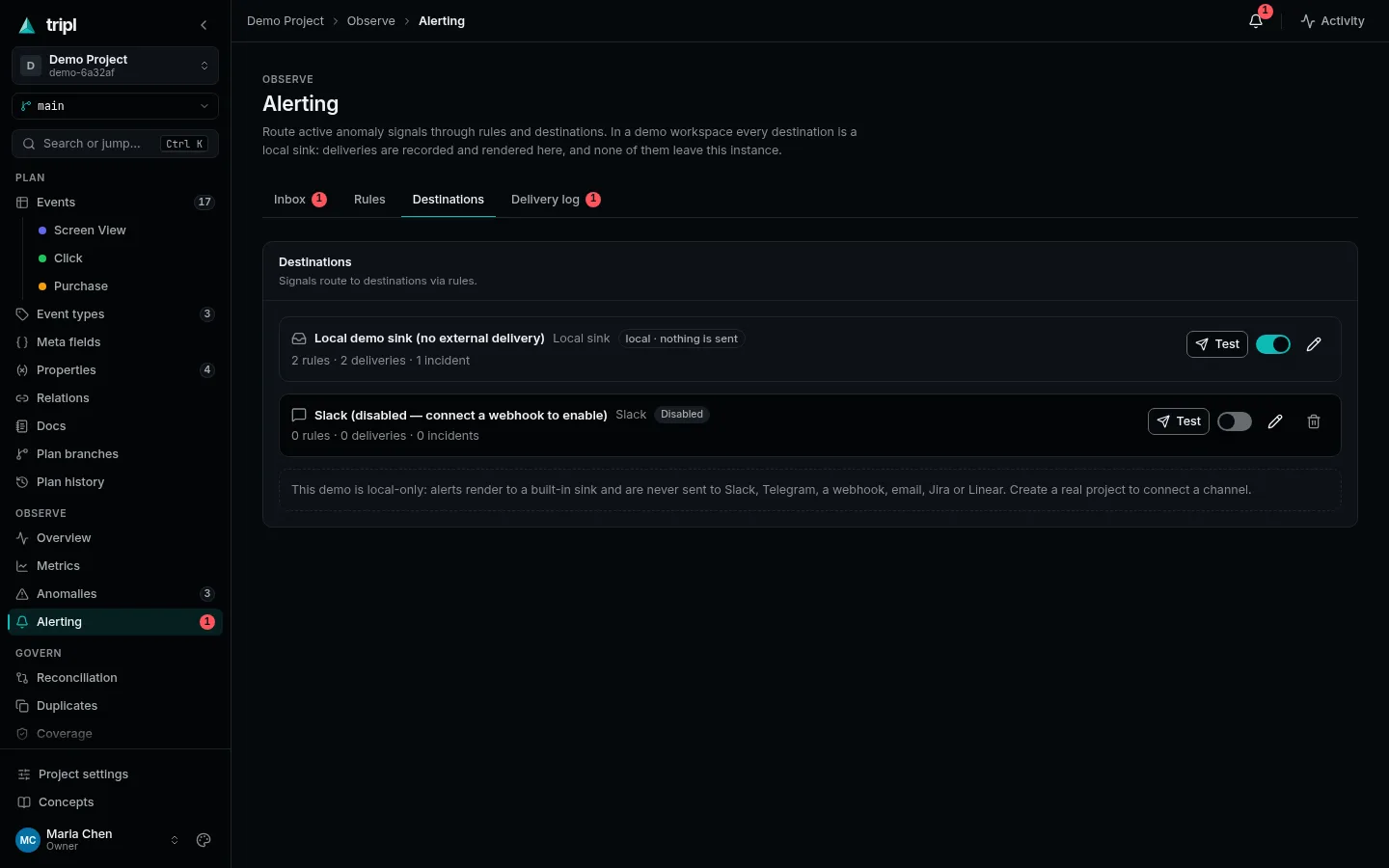
Open Observe → Alerting, then the Destinations tab, and press Add destination. Choose the channel and give it what it needs:
| Channel | What it needs |
|---|---|
| Slack | An incoming webhook URL. |
| Telegram | A bot token and a chat ID. |
| One or more addresses. The instance's mail settings do the sending. | |
| Webhook | A URL that receives a JSON payload, and an optional secret header. |
| Jira, Linear | The tracker's credentials. Each alert opens an issue. |
| PagerDuty | An Events API v2 integration key. Each incident pages once and is resolved when tripl closes it. |
| Microsoft Teams | A Workflows (or incoming webhook) URL for the channel. |
Make sure the destination is enabled, then press Test on its card: a test message should arrive within seconds.
2. Write a rule
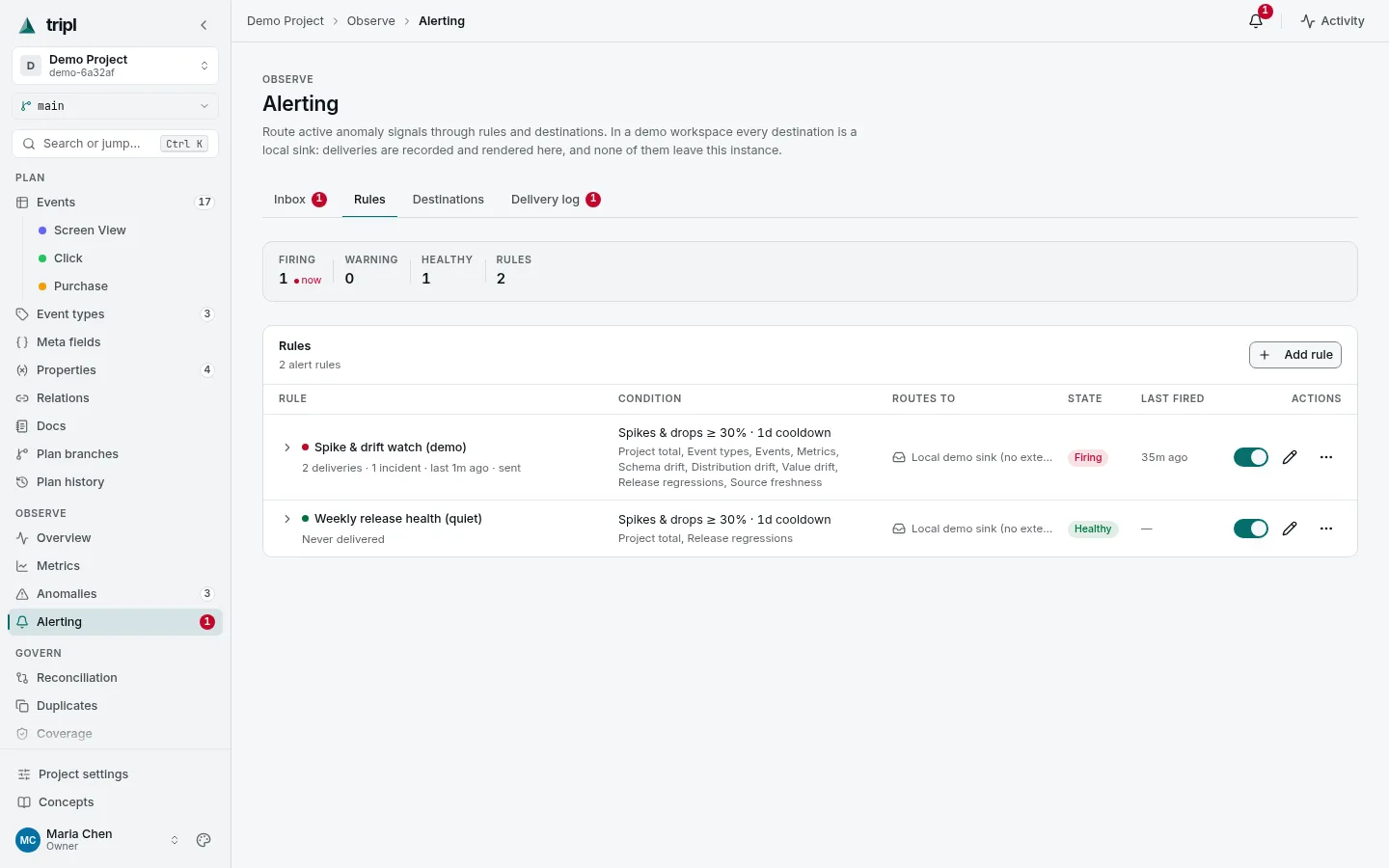
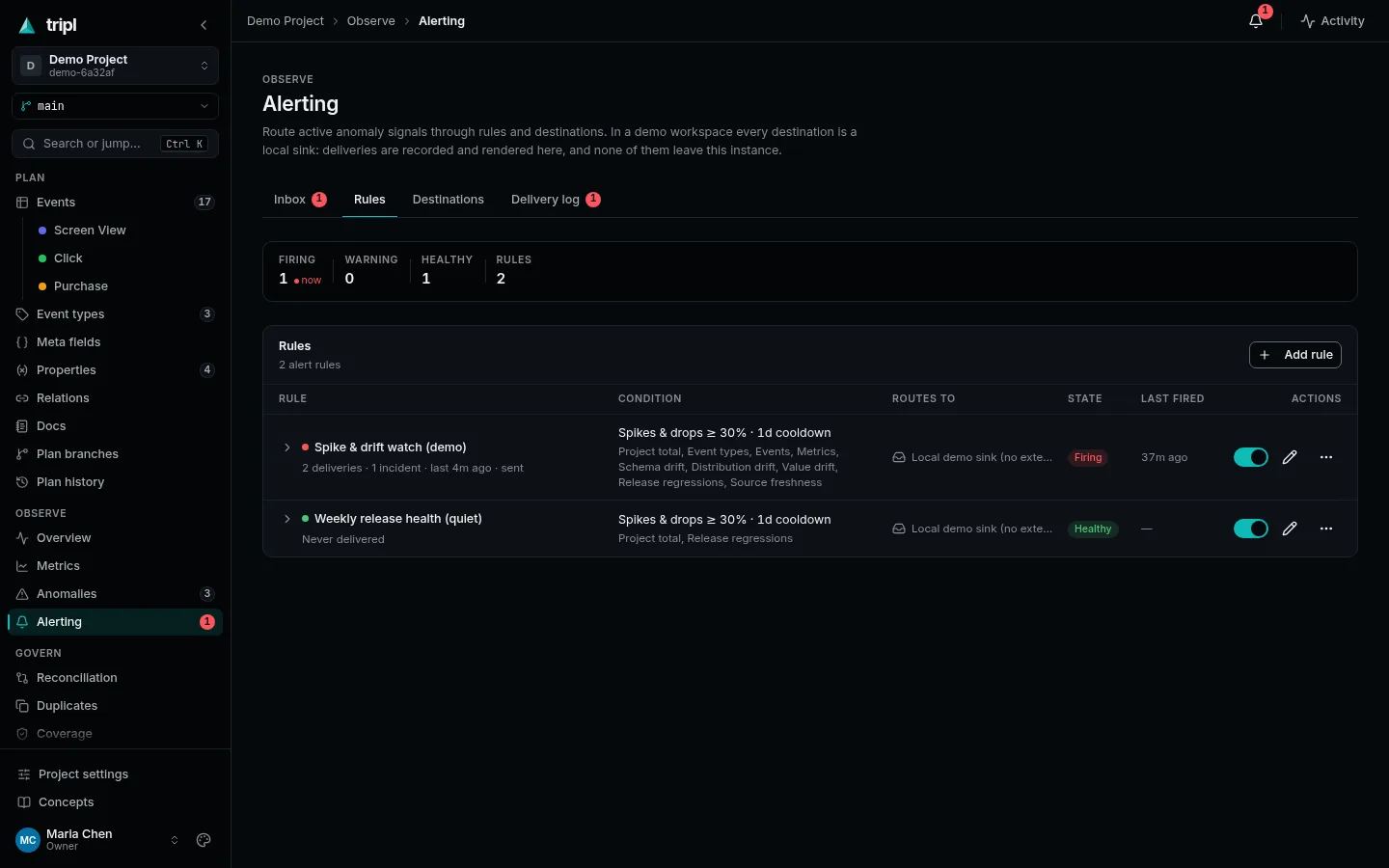
A rule decides which signals are worth interrupting someone for. On the Rules tab, press Add rule.
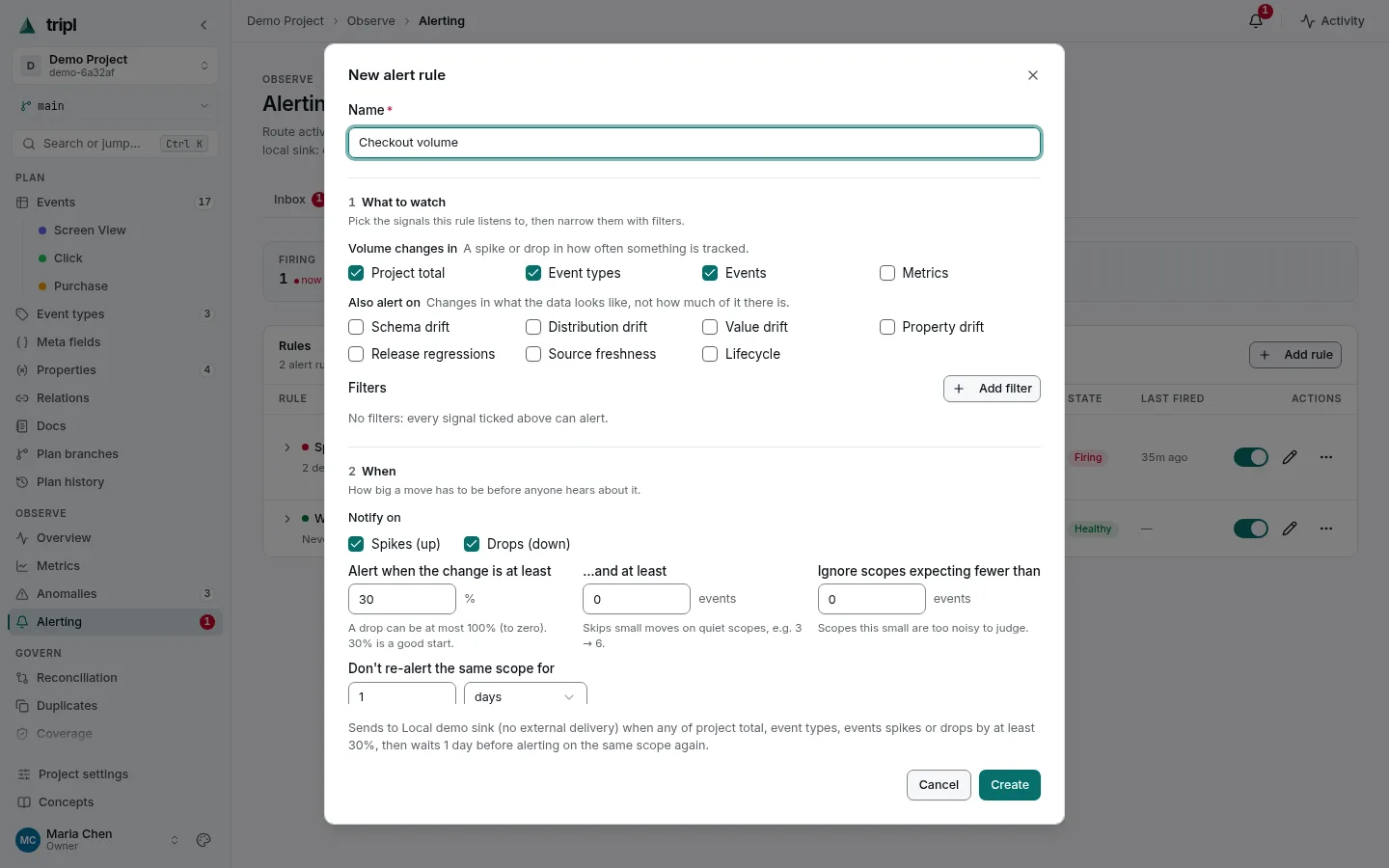
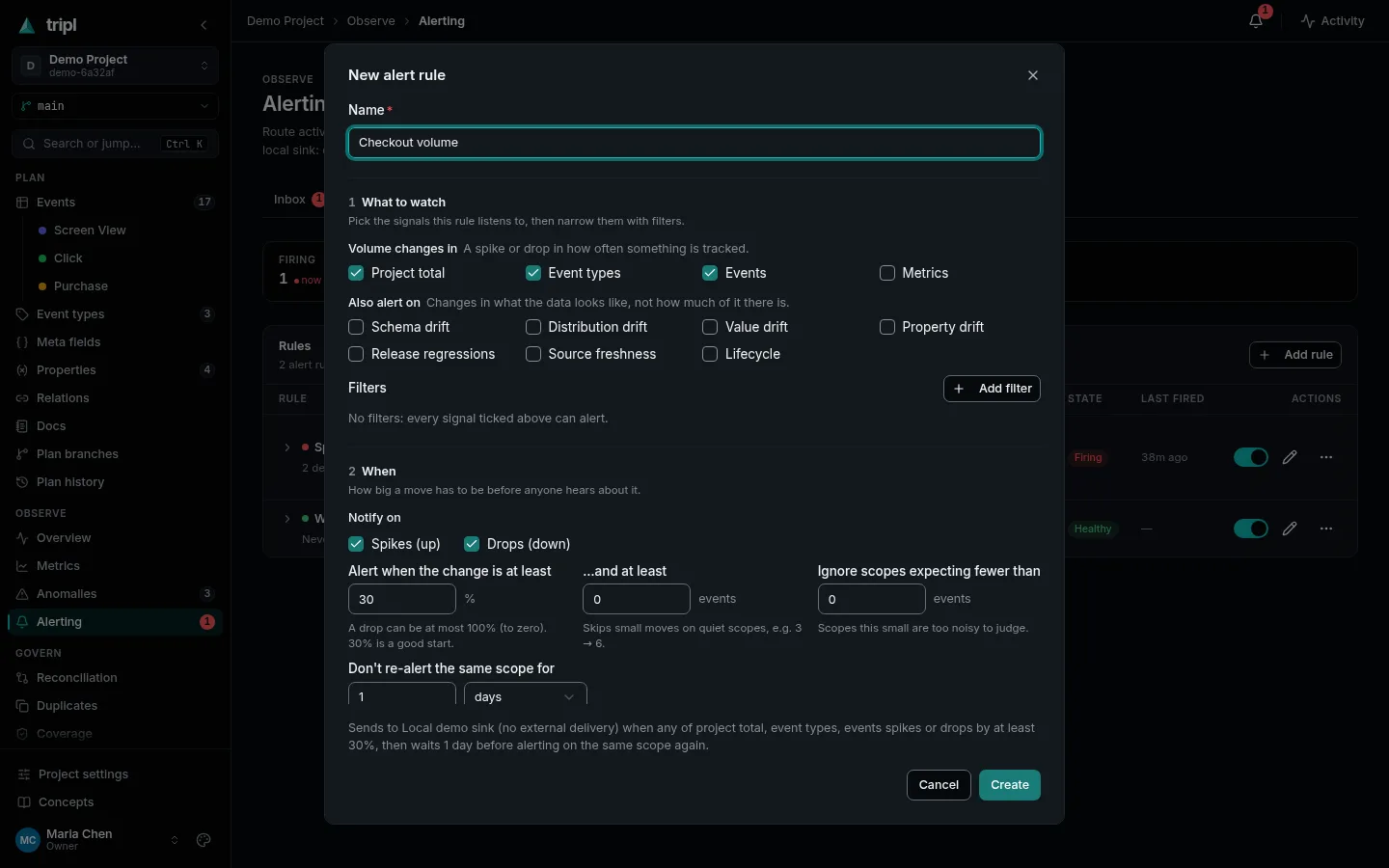
- What to watch: the project total, event types, single events or metrics. Add filter narrows it further. Schema drift, release regressions and the other kinds of change are separate boxes, off until you tick them.
- When: spikes, drops or both, and how big a change has to be. 30% is a good start. Don't re-alert the same scope for keeps one problem from messaging you every hour.
- Where: the destination from step 1.
The sentence at the bottom of the dialog reads the rule back in plain words. Check it, then press Create.
3. Replay it before you rely on it
On the Rules tab, open the rule's … menu and choose Replay. tripl runs recent days of real data through the rule and shows what it would have sent. Too many? Raise the threshold or narrow the scope. None at all, on a week you know had a problem? Lower it.
4. Handle what fires
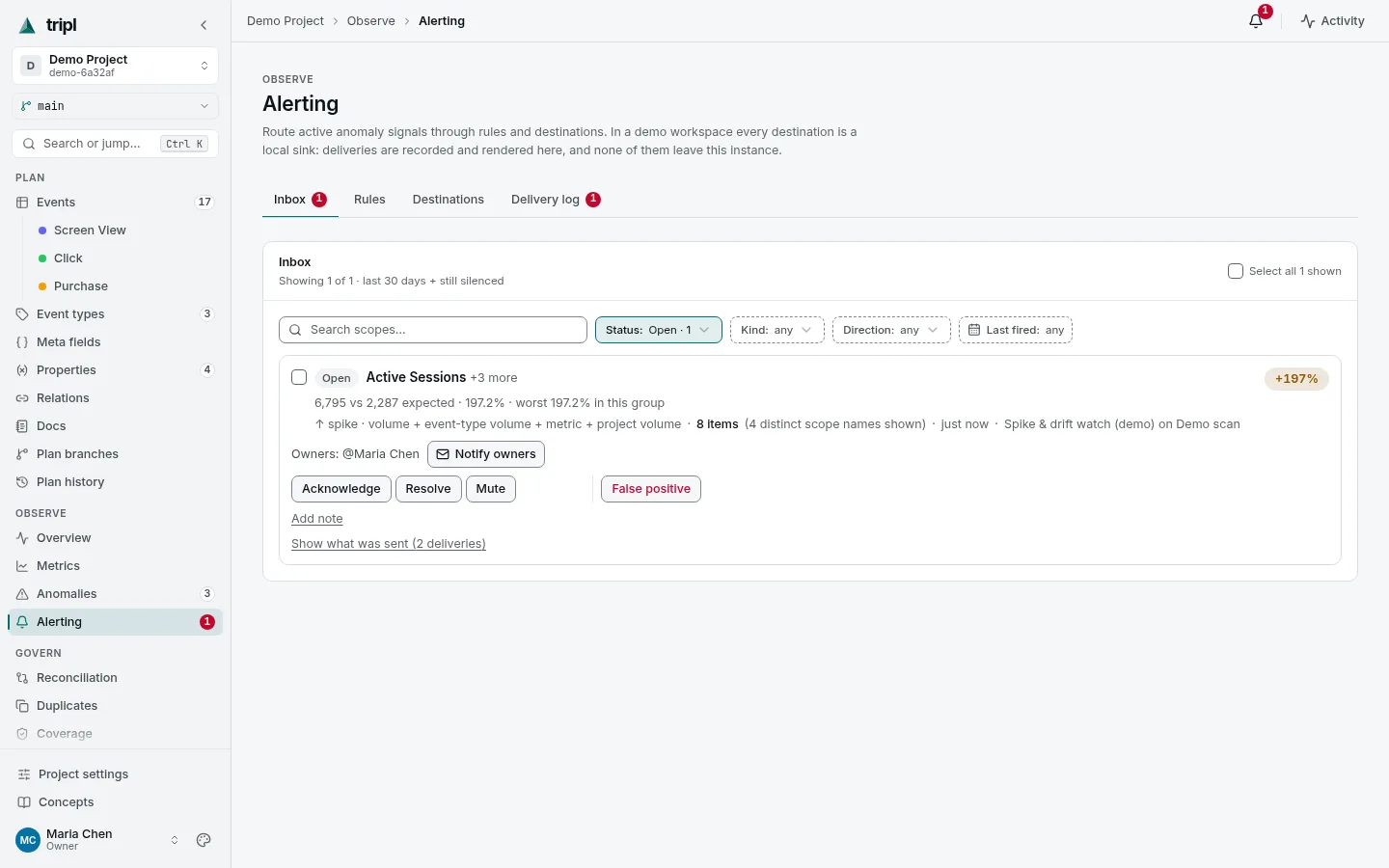
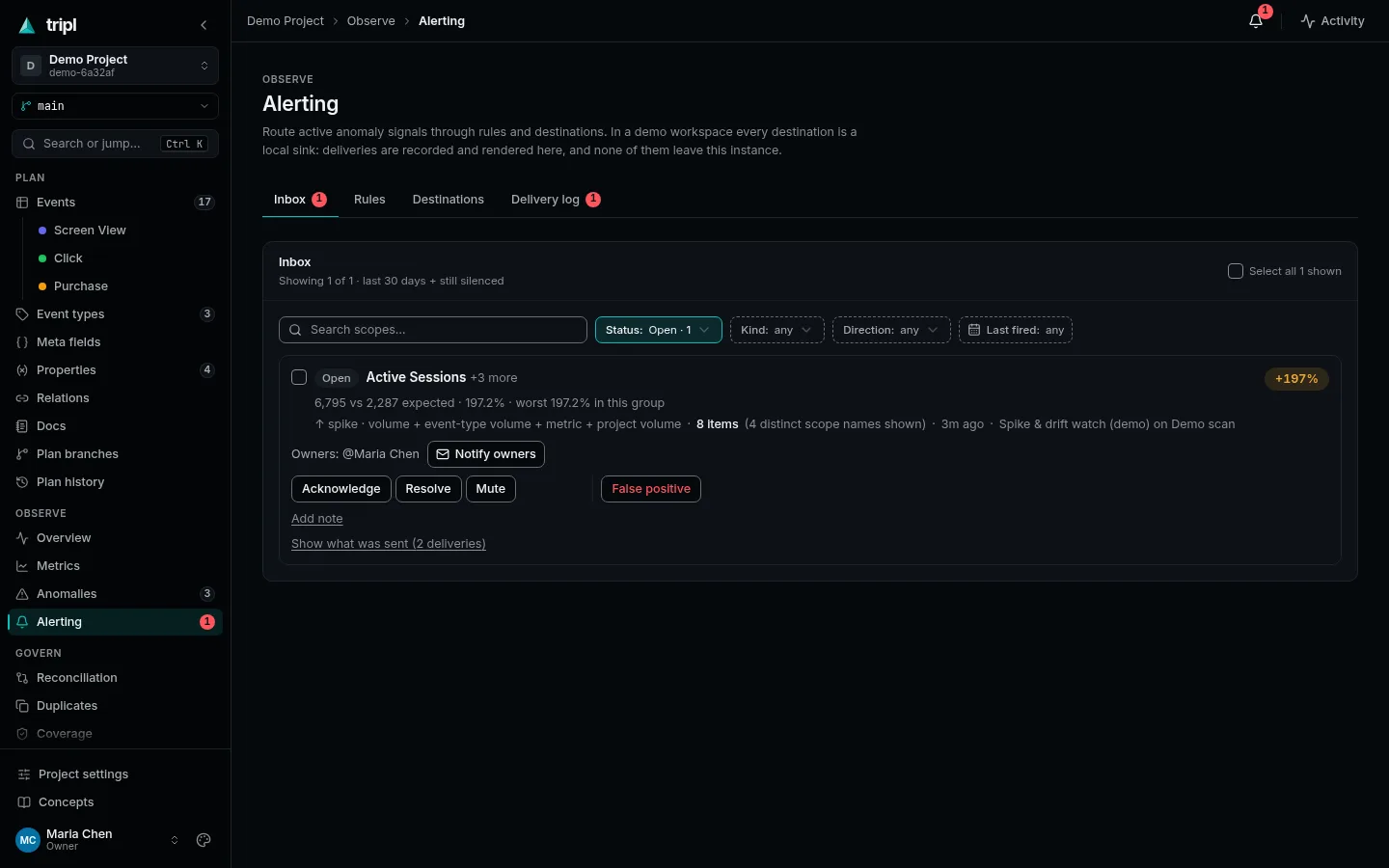
Alerts that belong to one problem are grouped into an incident in the Inbox tab. Acknowledge says someone is on it, Resolve closes it, Mute silences it for a while, and False positive tells the detector it was wrong, so it becomes a little less sensitive on that scope. Delivery log shows every message that went out and whether it arrived.
See Investigate a signal for working out what actually happened.
Check, in order: did a scan collect data; are the rule and the destination enabled; is the change bigger than the rule's threshold; did a cooldown or an acknowledged incident swallow it; does the Delivery log show a failure.
More detail: Alerting rules covers every rule option, message templates, routing and the Inbox.