Try tripl on the demo project
You will: see the whole product working on realistic data in about ten minutes, without connecting a warehouse or sending anything anywhere.
You need: a running tripl and an account. On a fresh instance, the first person to register becomes the owner.
1. Generate the project
On All projects, press Generate demo project.
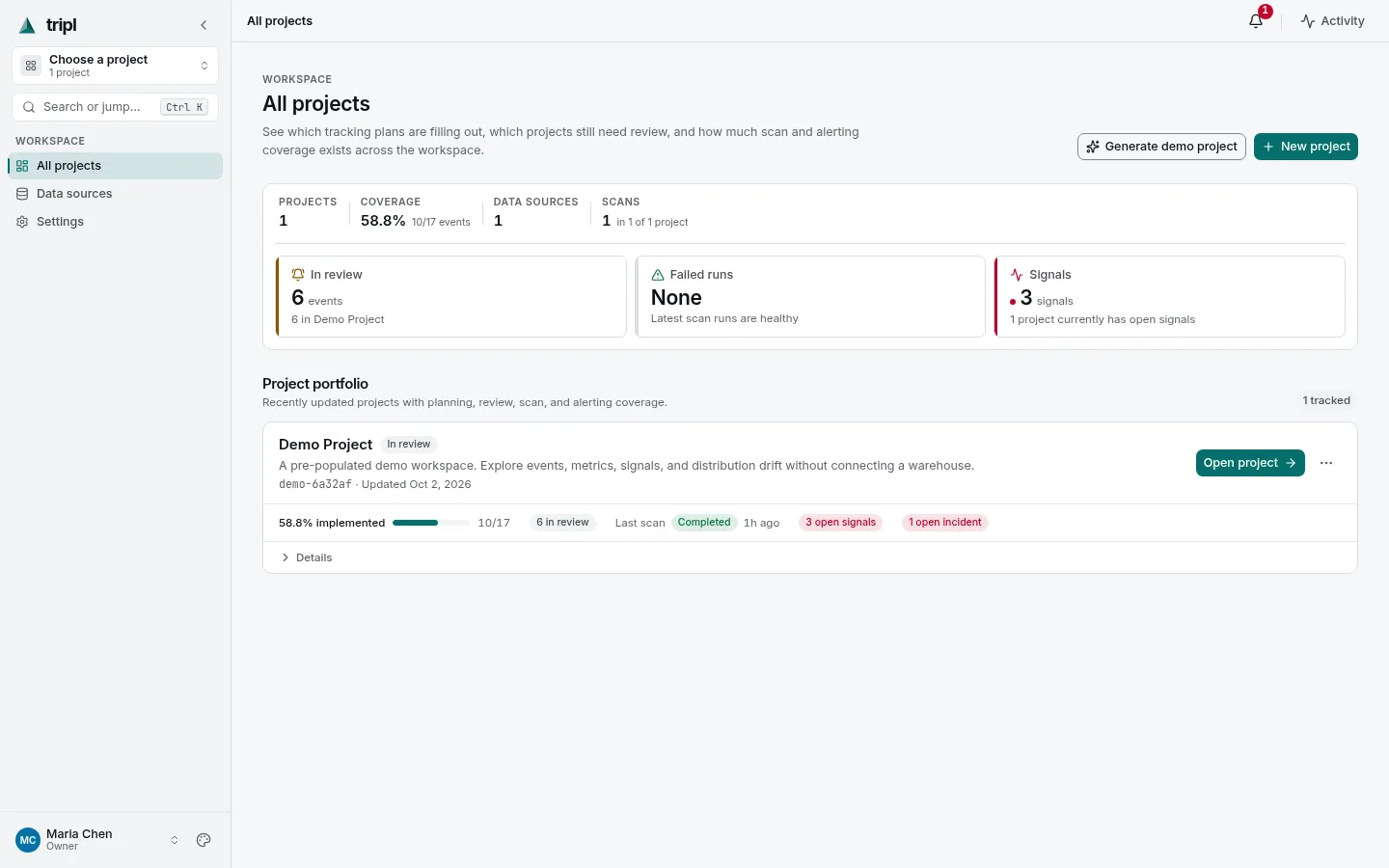
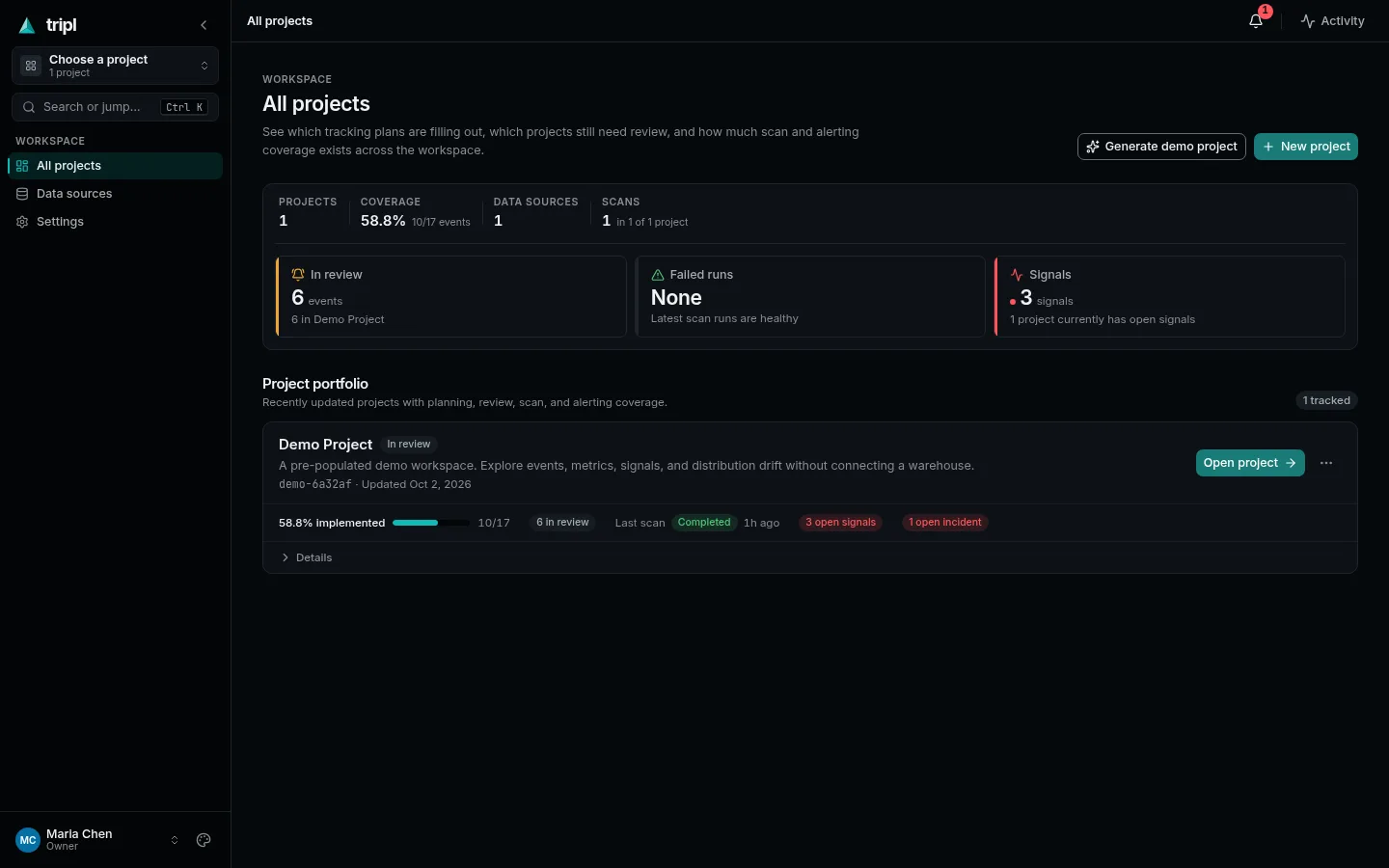
tripl builds a project for an imaginary mobile app: events across three event types, metrics, two weeks of collected volume, some open anomalies and a plan branch waiting for review. It all runs on a small synthetic warehouse inside tripl, so nothing leaves the server. The scans, detection and alerting you see are the real ones, running over that synthetic data.
2. Follow a chapter
The project opens on Overview with a welcome panel. Press Start: Run the live loop.
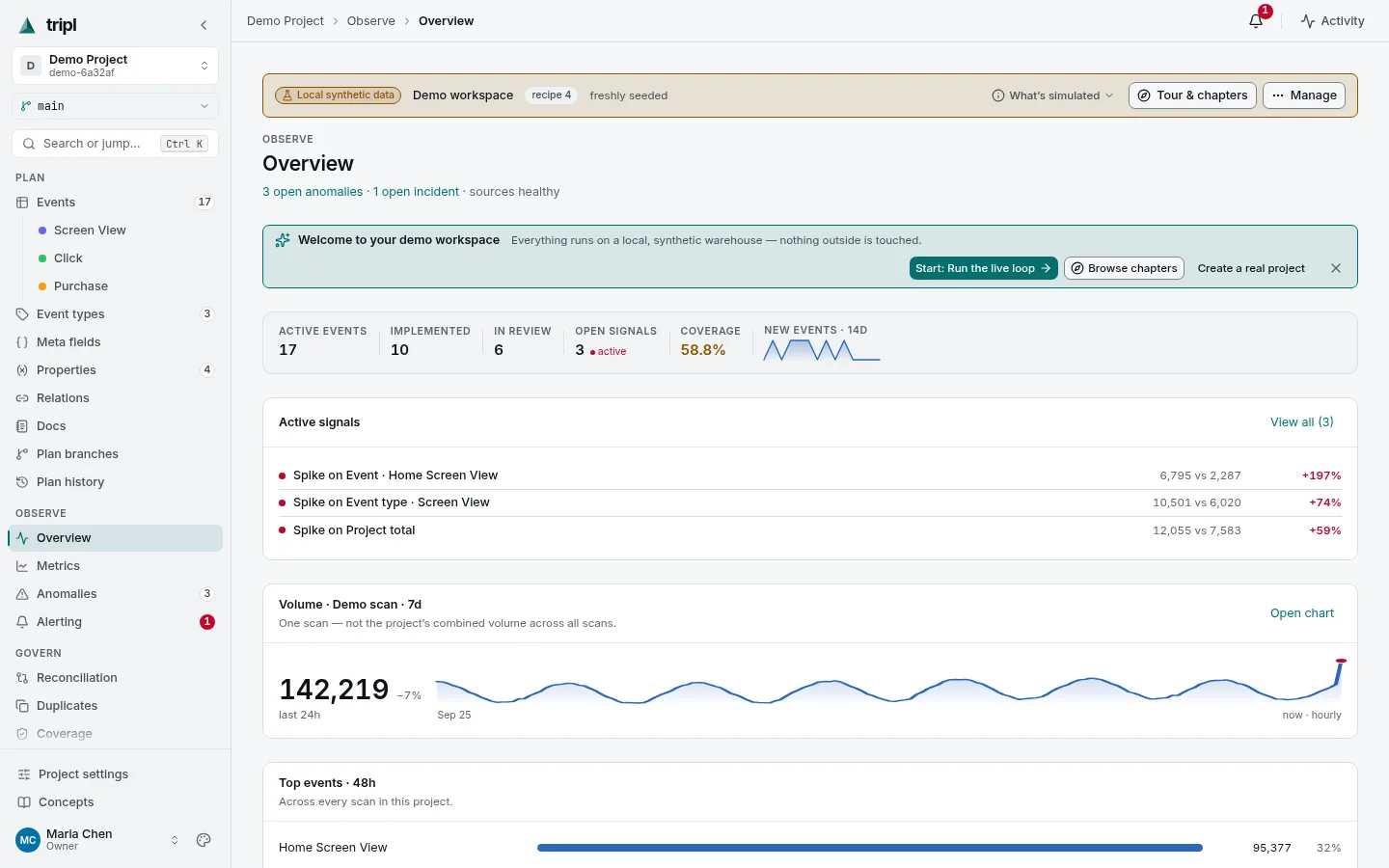
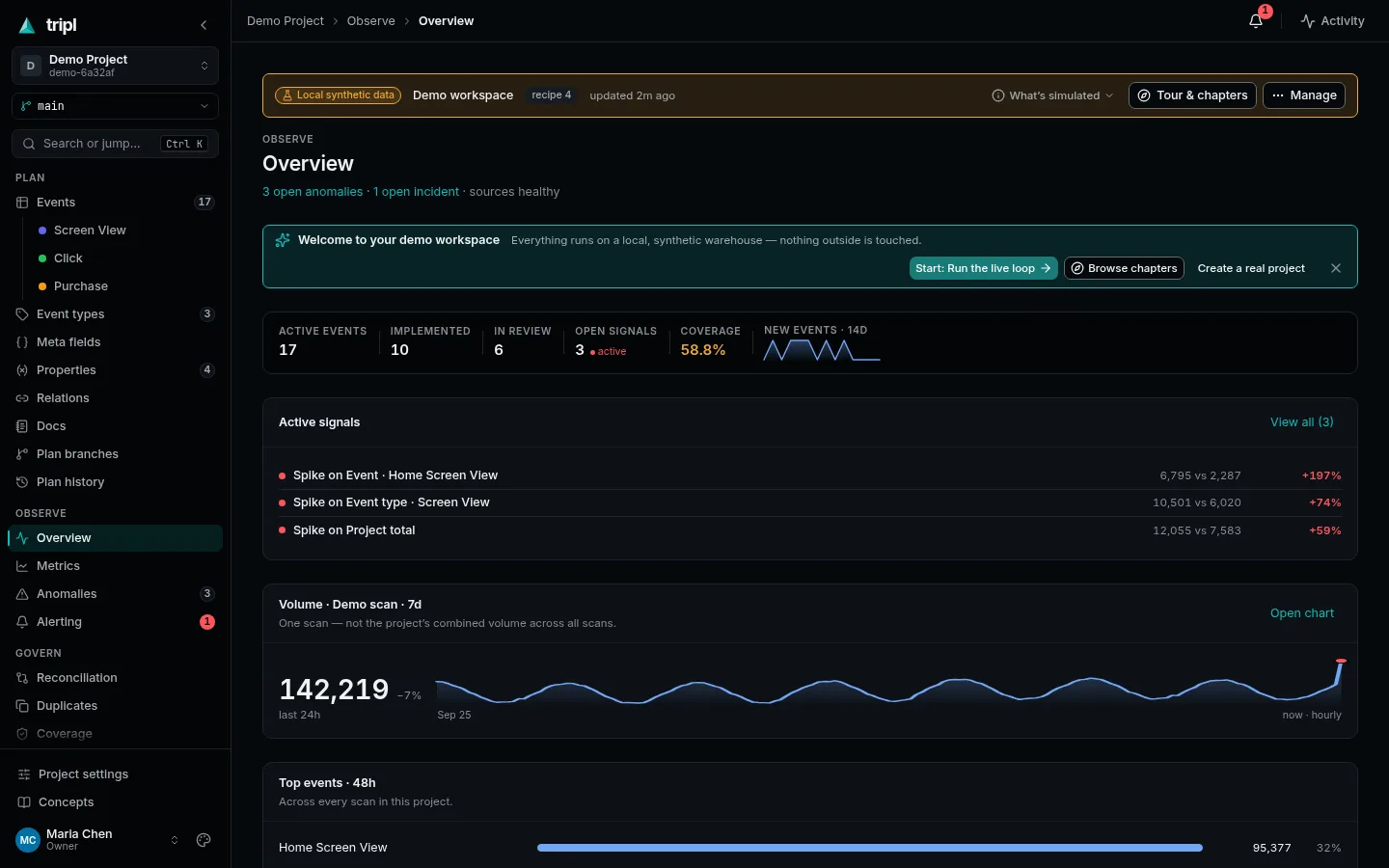
A chapter is a short hands-on lesson. A strip under the banner names the next step and a callout highlights the button to press. The first chapter runs the loop the whole product is built on: run a scan, watch it land, collect a metric, see the chart move. Browse chapters lists the others: editing an event, properties and value drift, reviewing a branch, reconciling the plan, routing an alert.
Chapters move forward only when you act. The demo also runs scans on its own in the background, and those never skip a step for you.
3. Look around on your own
A good order, once the first chapter is done:
| Open | What you will find |
|---|---|
| Plan → Events | The catalog: every event, its status, its fields and how busy it is. |
| Observe → Overview | The state of the project on one screen. |
| Observe → Anomalies | The moves detection found, waiting for a verdict. |
| Observe → Alerting | The incidents alert rules raised, and what was sent. |
| Govern → Reconciliation | Events in the data but not in the plan, and the reverse. |
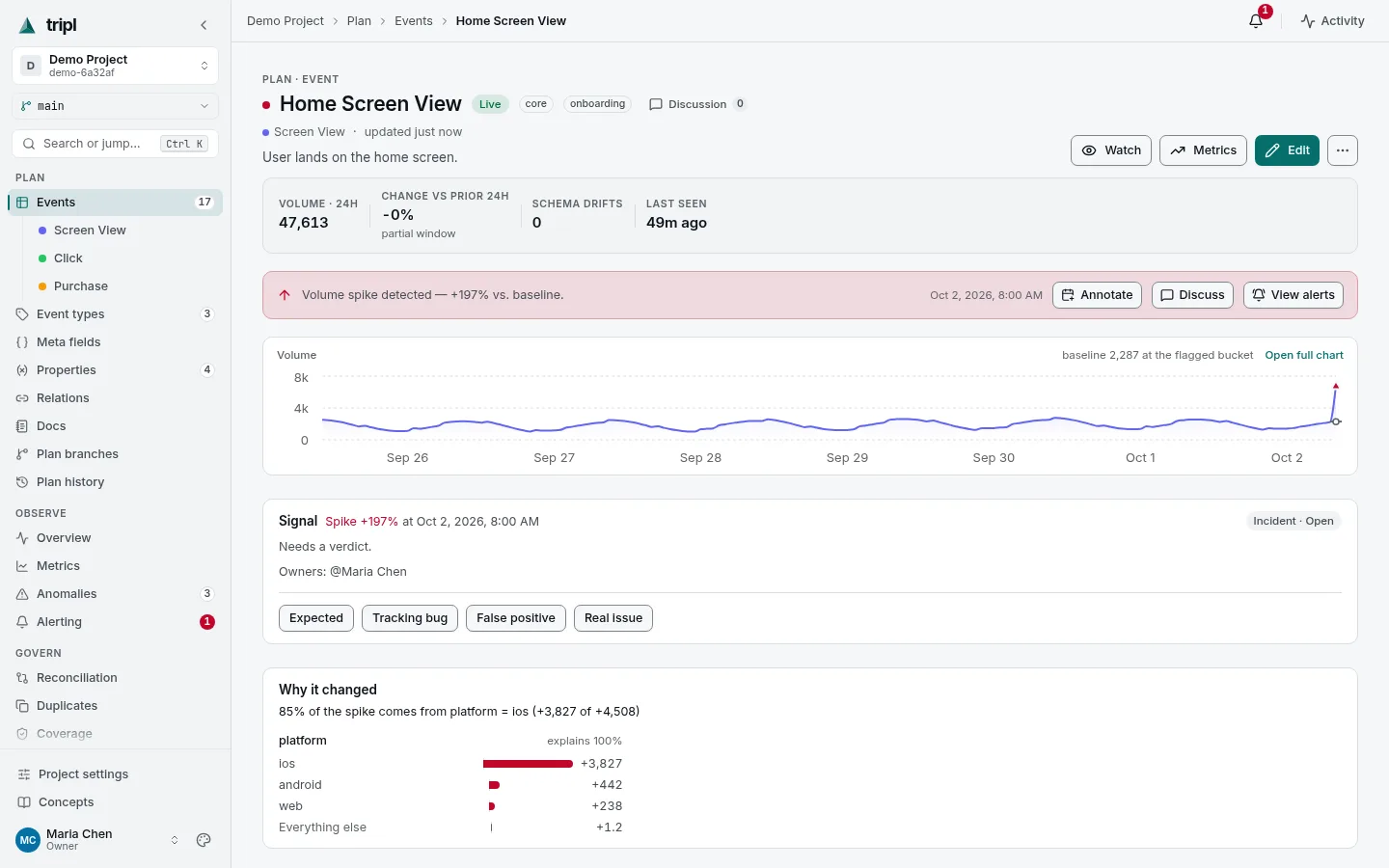
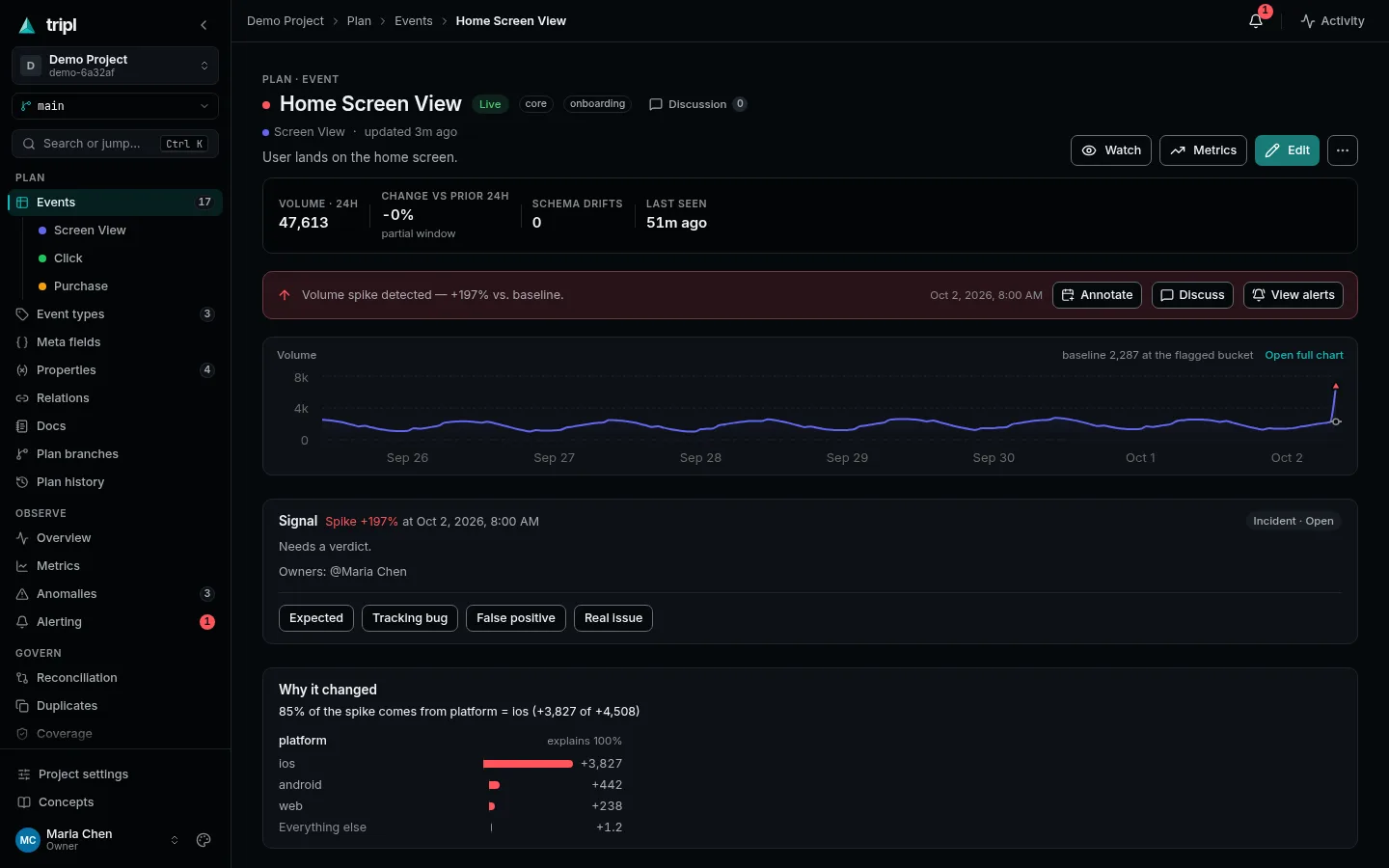
Click an event with a red dot to open its monitoring page: the volume chart, the spike, and why it changed, broken down by platform.
When you are done
Reset or delete the demo from Manage on its banner; it never touches your other projects. When you are ready for your own data, go back to All projects, press New project, then connect your warehouse.
More detail: The demo workspace lists exactly what is synthetic, what really runs, and what the demo deliberately cannot do (such as send a real Slack message).